3. Agent Level - Call Center Feature - Campaigns Tab
After you click the “Begin Session” button, the session will start and the Queues tab will appear in the main space of the app.
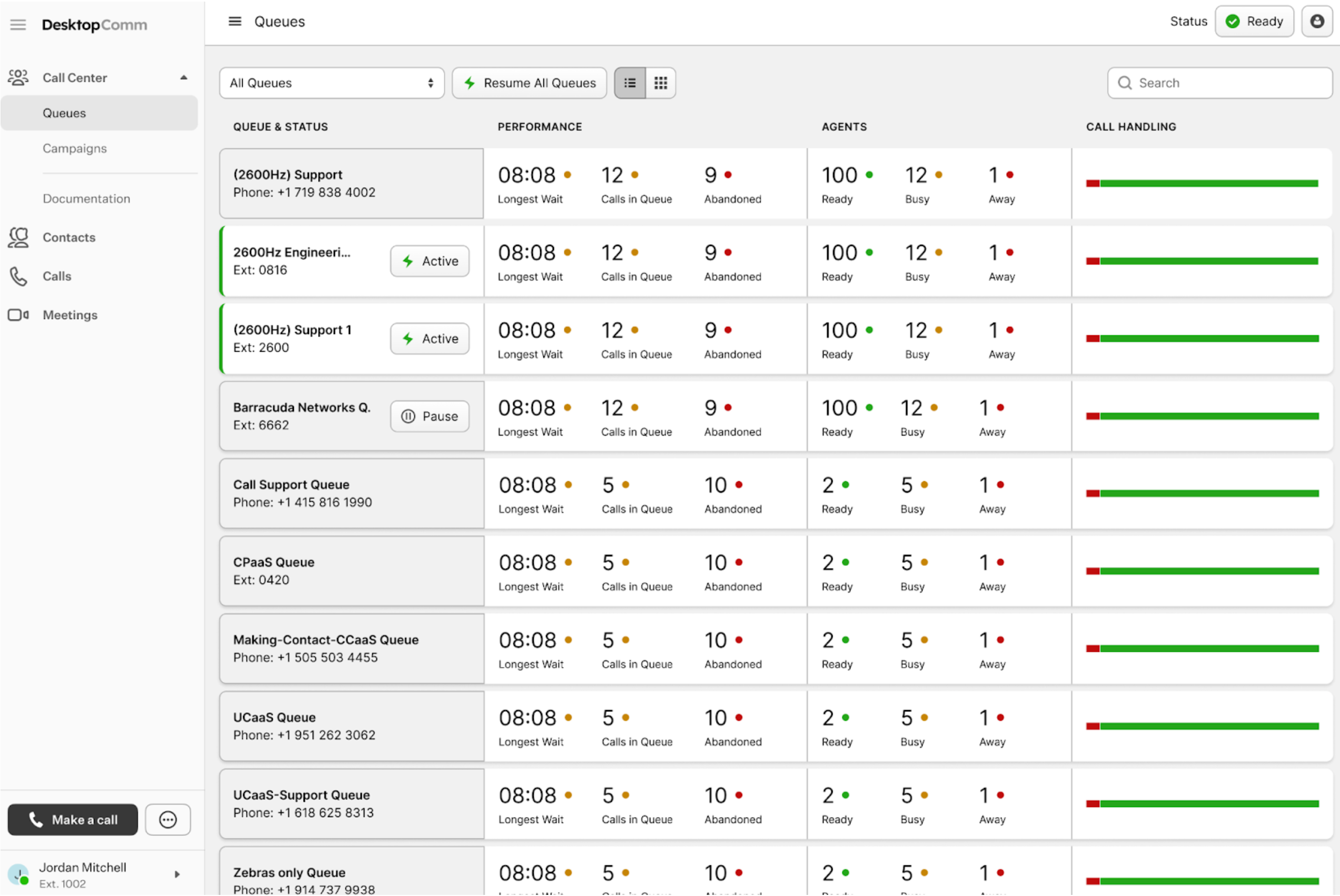
Click the Campaigns tab in the left-hand menu of the portal to open the corresponding section of the Call Center.
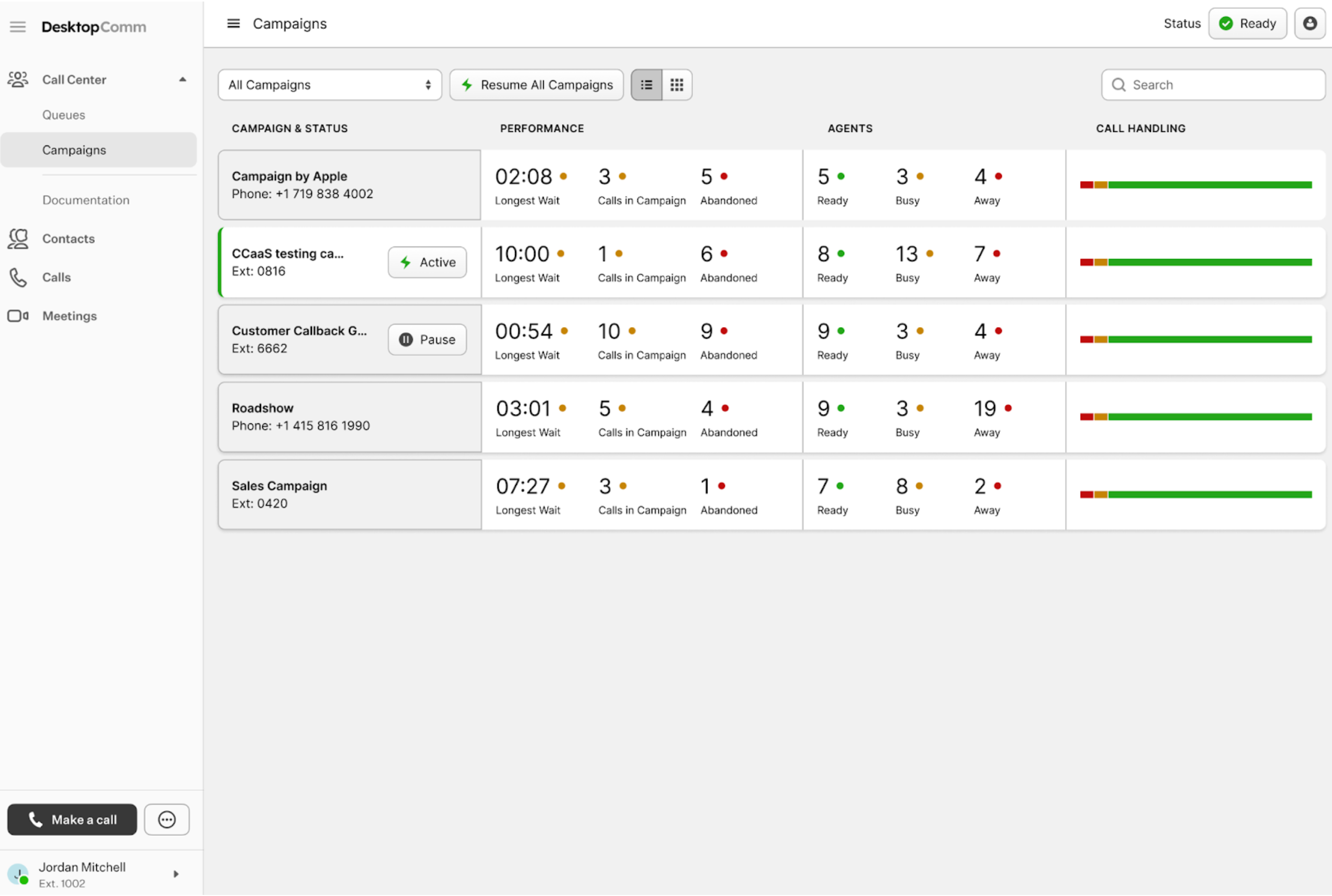
Campaigns are structured call-center initiatives designed to manage and track interactions related to a specific objective, such as sales outreach, customer surveys, appointment reminders, marketing promotions, customer follow-ups, or service notifications. An outbound campaign is a structured set of calls placed to a specific list of contacts for a specific purpose, such as: sales, customer surveys, marketing promotions, etc.
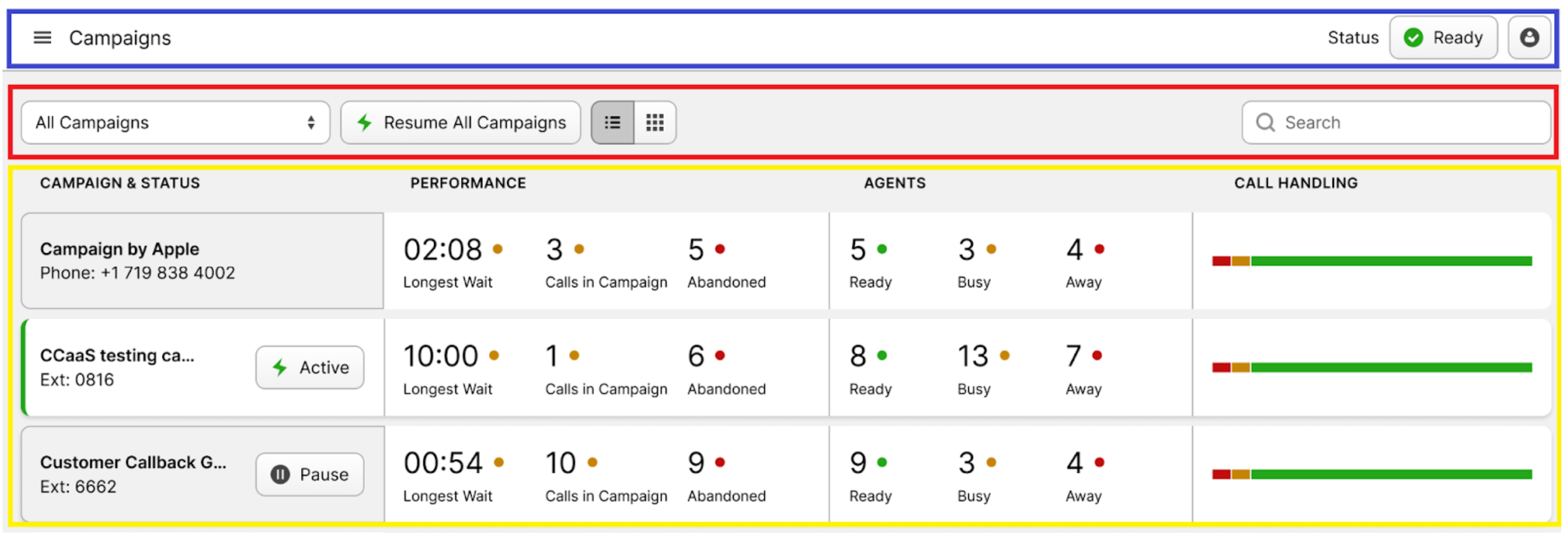
The interface of the Campaigns tab can be divided into three primary sections:
-
Campaigns Status Bar (blue rectangle): this bar allows you to control the status of the campaign sessions.
-
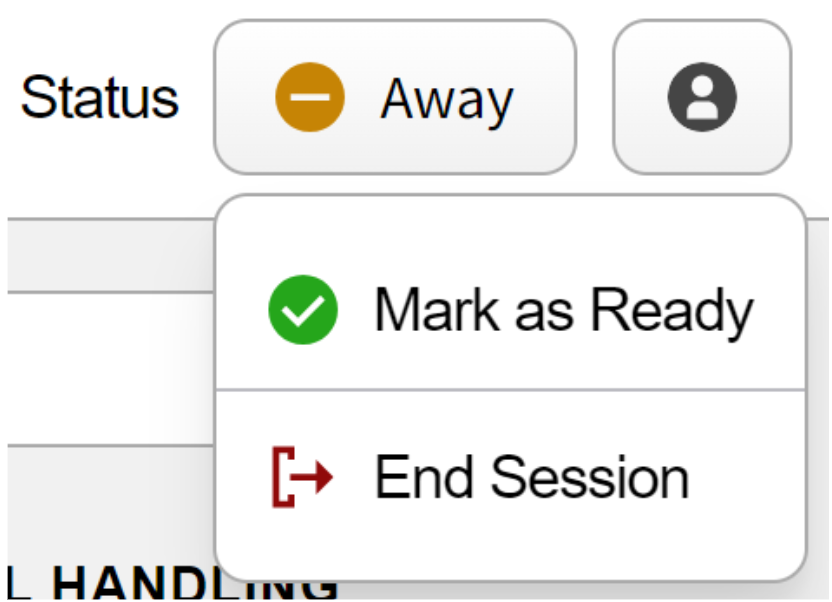
The status button lets you update your account’s status. Clicking it opens a drop-down list with options such as “Ready,” “Away,” or “End Session.”
-
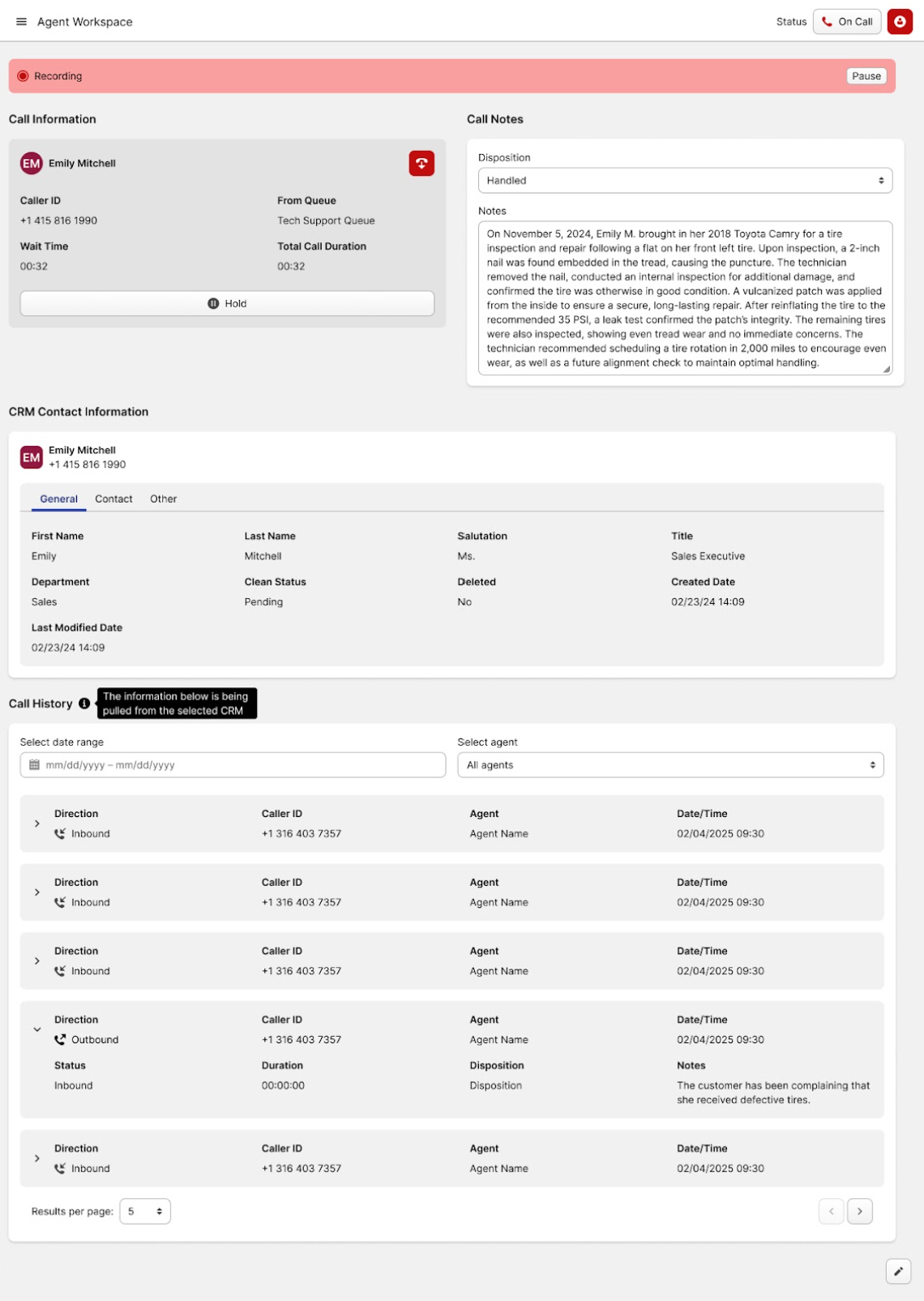
The button with the human icon provides access to the agent workspace, where you can enter call details, notes, and other related information.
-
-
Action Bar (red rectangle): this bar contains all the action controls used to sort campaigns, switch the view, and pause or resume all queues simultaneously.

- All Campaigns: clicking this field allows you to sort the campaigns.
- Pause/Resume All Campaigns: when you click the “Pause All Campaigns” button, every campaign in the list will be paused. The button will then switch to “Resume All Campaigns,” which you can click to reactivate all campaigns.
- List / Grid View: clicking this button will change the way all campaigns are displayed in this tab.
- Search Bar: it functions as a typical search field, helping you locate a particular campaign or narrow down the list.
-
Campaigns (yellow rectangle): each campaign in the section is displayed as a tile. Depending on the selected View, it will appear either as a long horizontal tile or a smaller rectangular one. Each tile contains useful information such as the campaign name, its status, performance metrics, assigned agents, and key call-handling details.

If a tile displays a status button, it indicates that the campaign currently has an active session. Clicking this button allows you to change the session’s status from “active” to “paused.”
Clicking any campaign in the list opens its dedicated page, where you’ll find the same information in greater detail, along with the action button and tabs for dial list, calls, members, and activity logs.
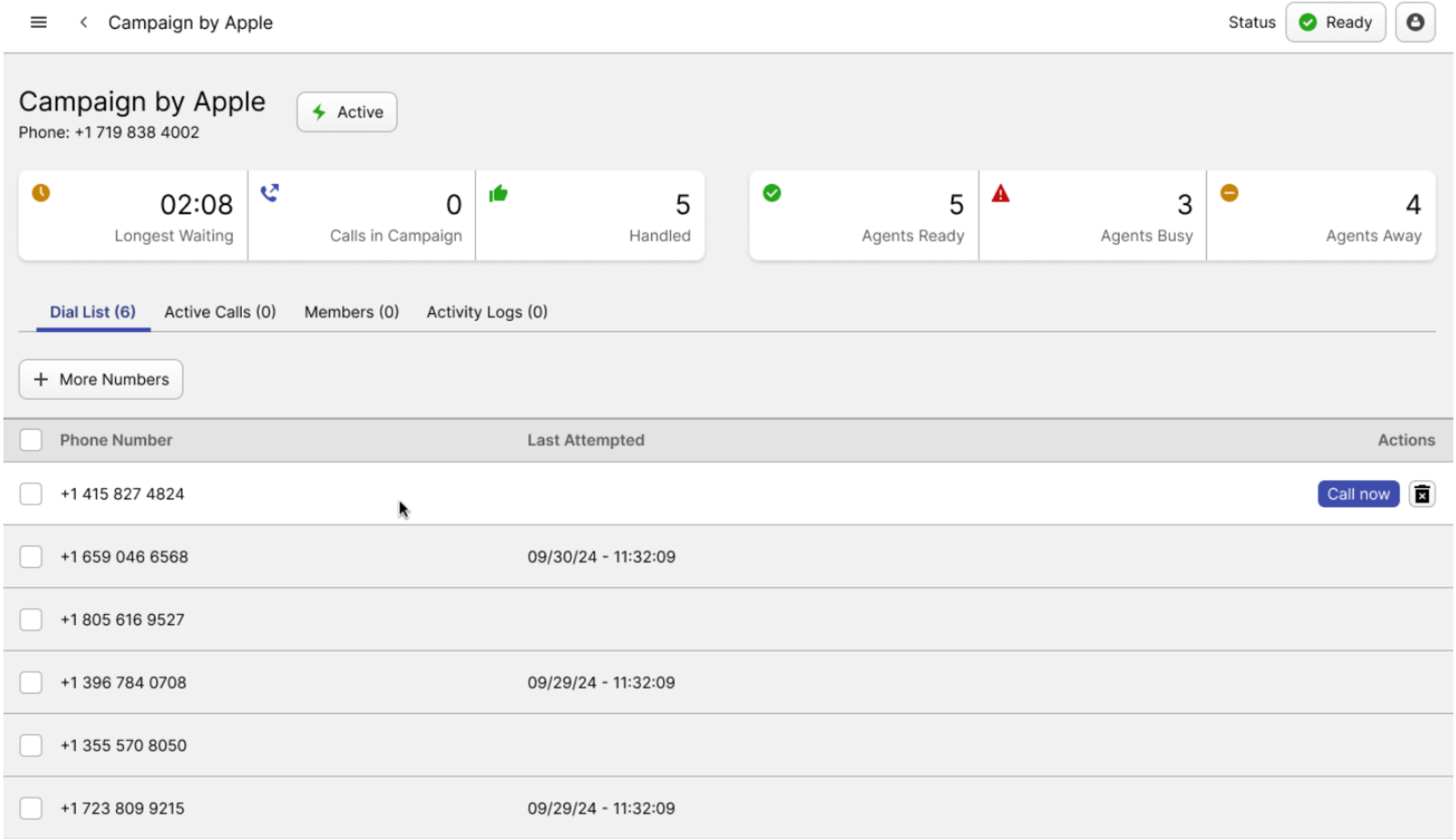
The action button here is:
-
Activity button: clicking this button allows you to enable or pause the selected campaign.

The lower half of the selected campaign’s page contains four tabs:
-
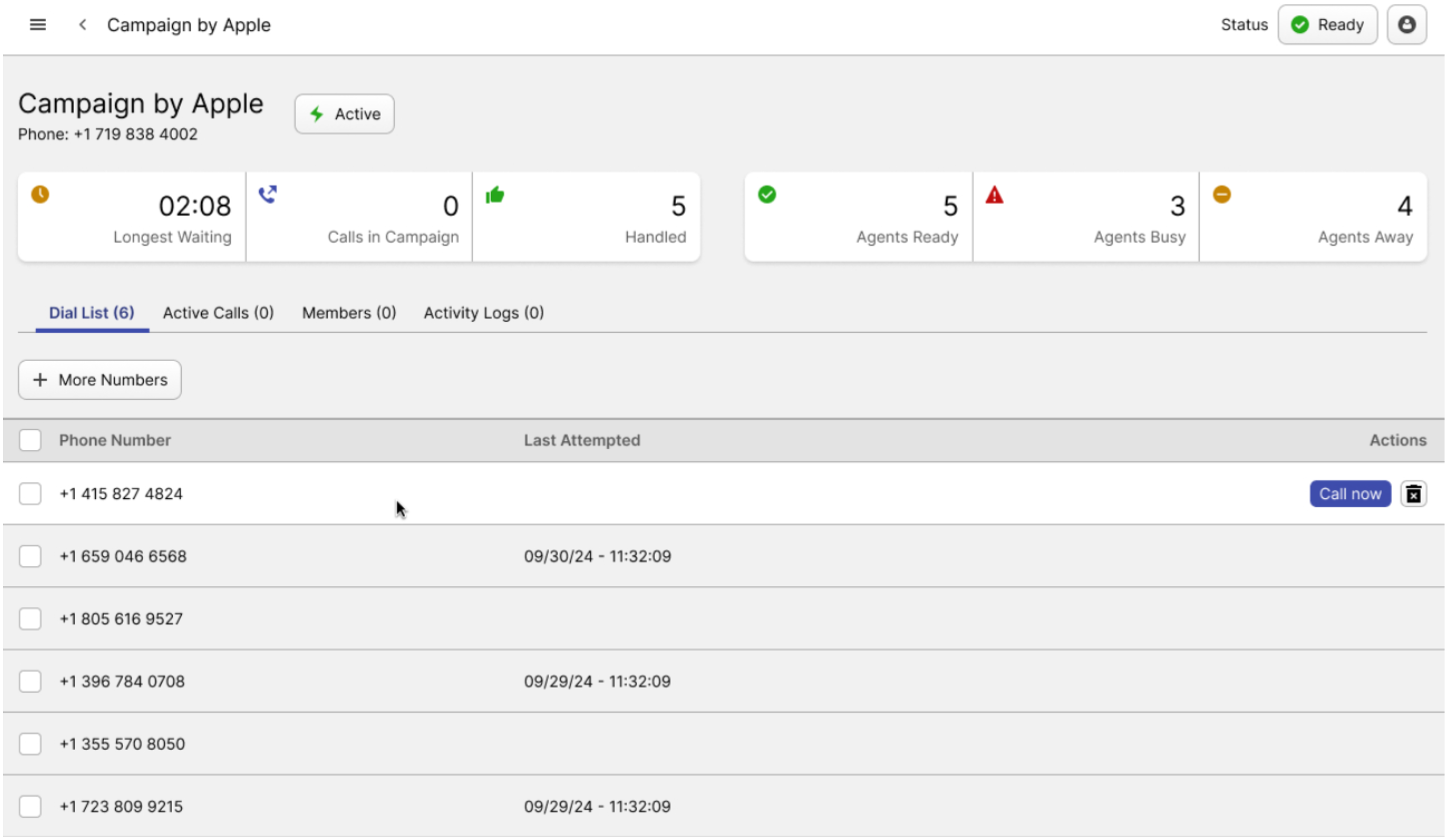
Dial List tab: this tab displays all phone numbers in the selected campaign’s Dial List.
- **Active Calls tab**: here, you can see a list of active calls currently taking place within the selected **campaign**.This topic is extensive and will be covered in detail in the following sections of the user guide.
-
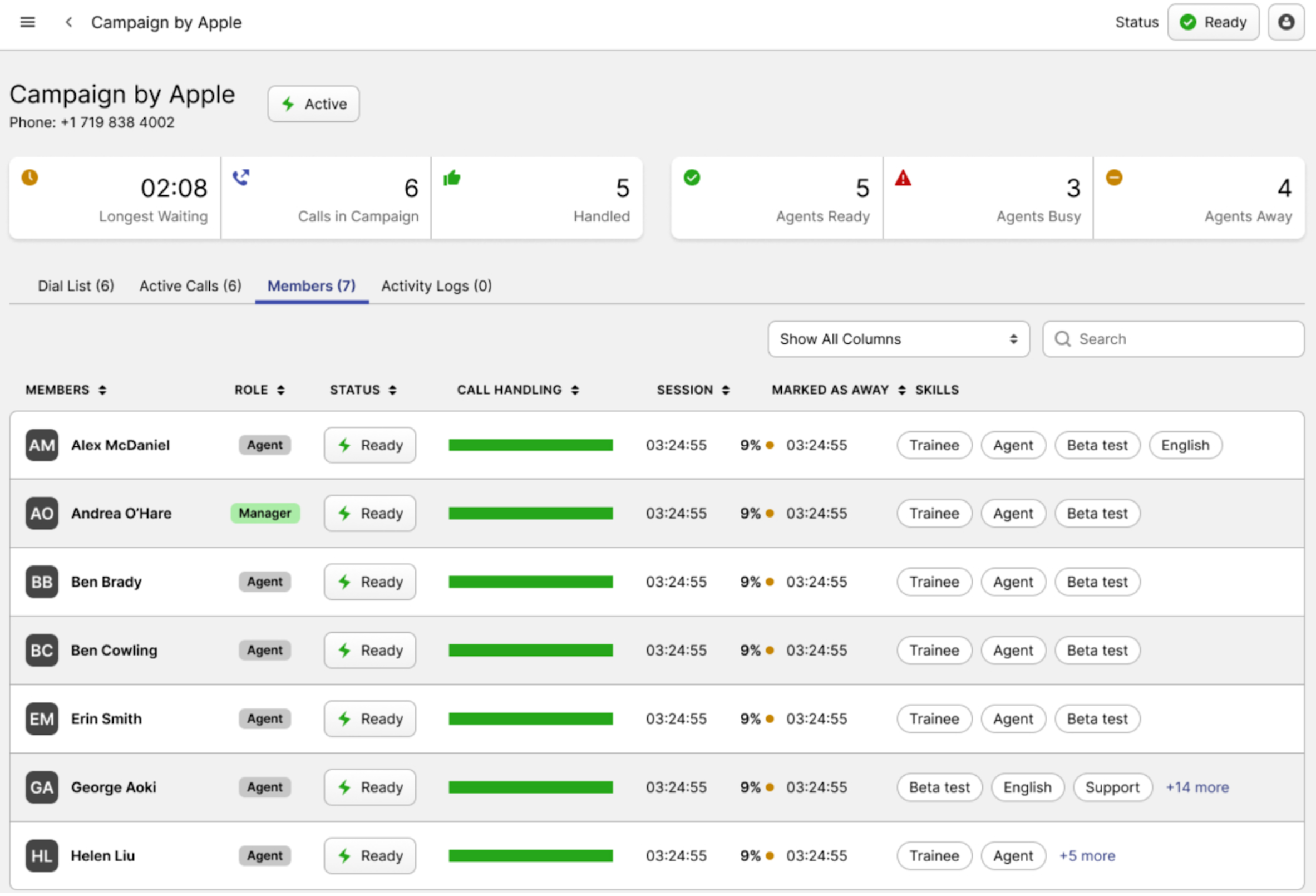
Members tab: this tab displays all agents assigned to this campaign. You can view their names, roles, status, and key statistics, including call handling data, current session duration, time spent in “away” status, and a list of their skills.
-
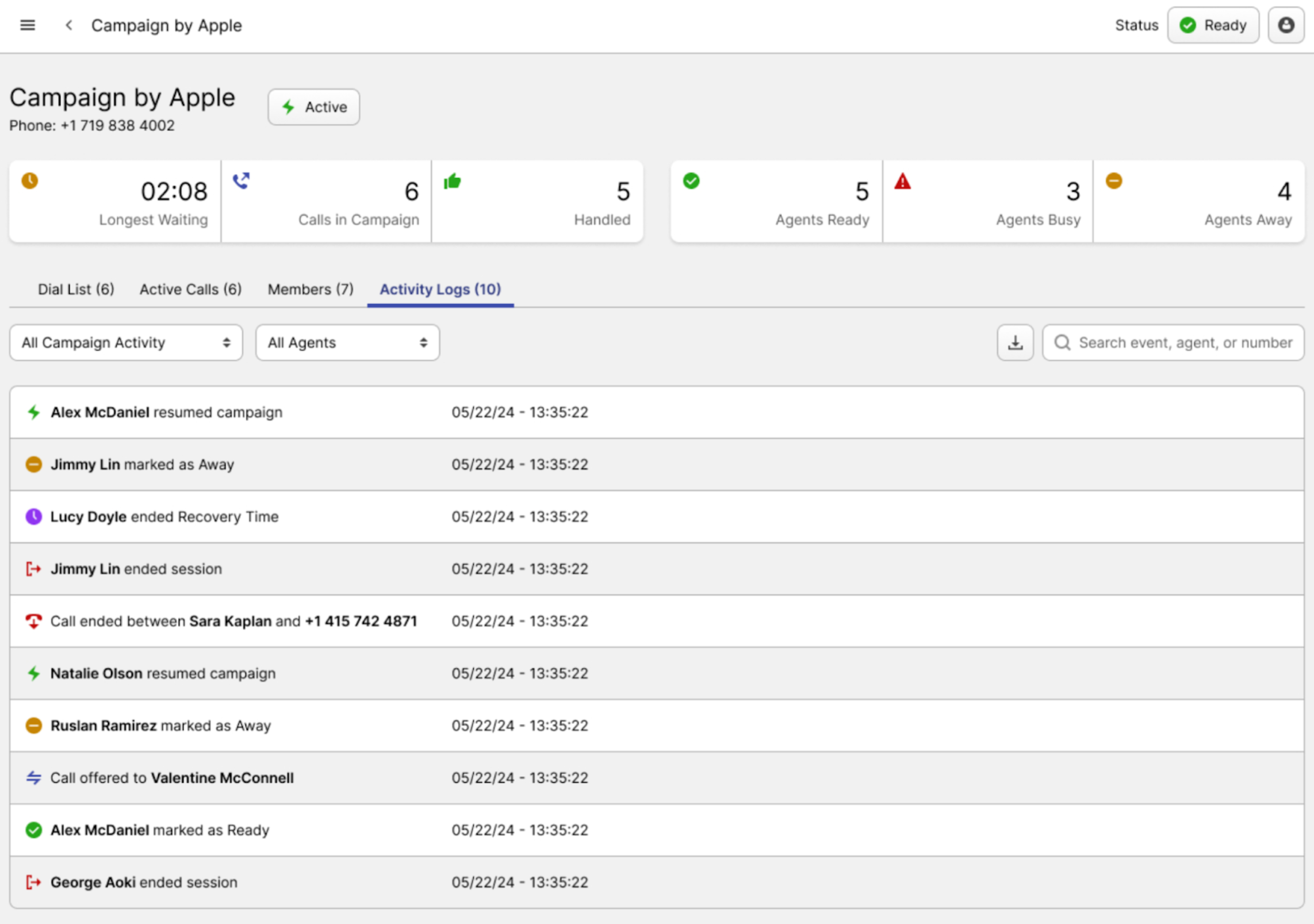
Activity Logs tab: this tab contains all logs related to the current campaign. You can filter logs by activity status or agent name, search by event, agent, or phone number, and download the entire log history.
-
Adding Numbers to Dial Lists
Clicking the “+ More Numbers” button opens a separate page where you can add numbers to the selected Dial List. You can add numbers to the dial list in two ways:
-
By uploading a CSV file: by choosing the “Upload CSV” tab, you can add phone numbers to the Dial List of the configured campaign by importing a CSV file.
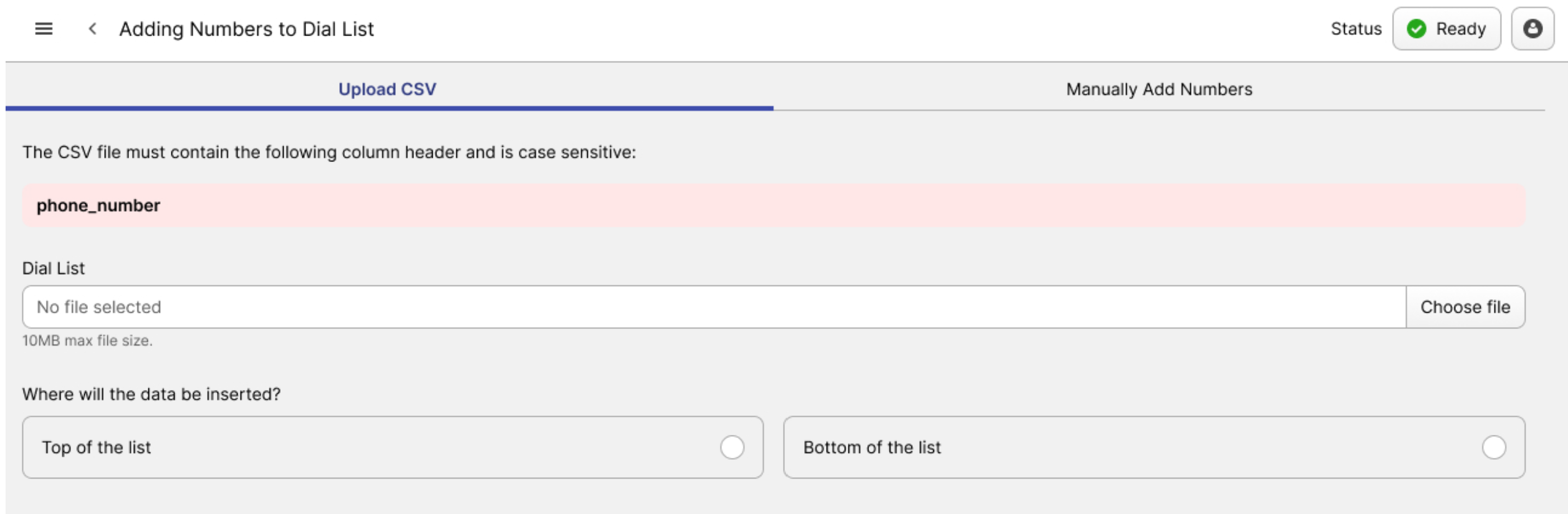
There are two parameters on this page that require your input:
- Dial List: use this field to upload a new CSV file.
- Where will the data be inserted: choose how the phone numbers from the uploaded CSV file should be added to the Dial List.
- Top of the list
- Bottom of the list
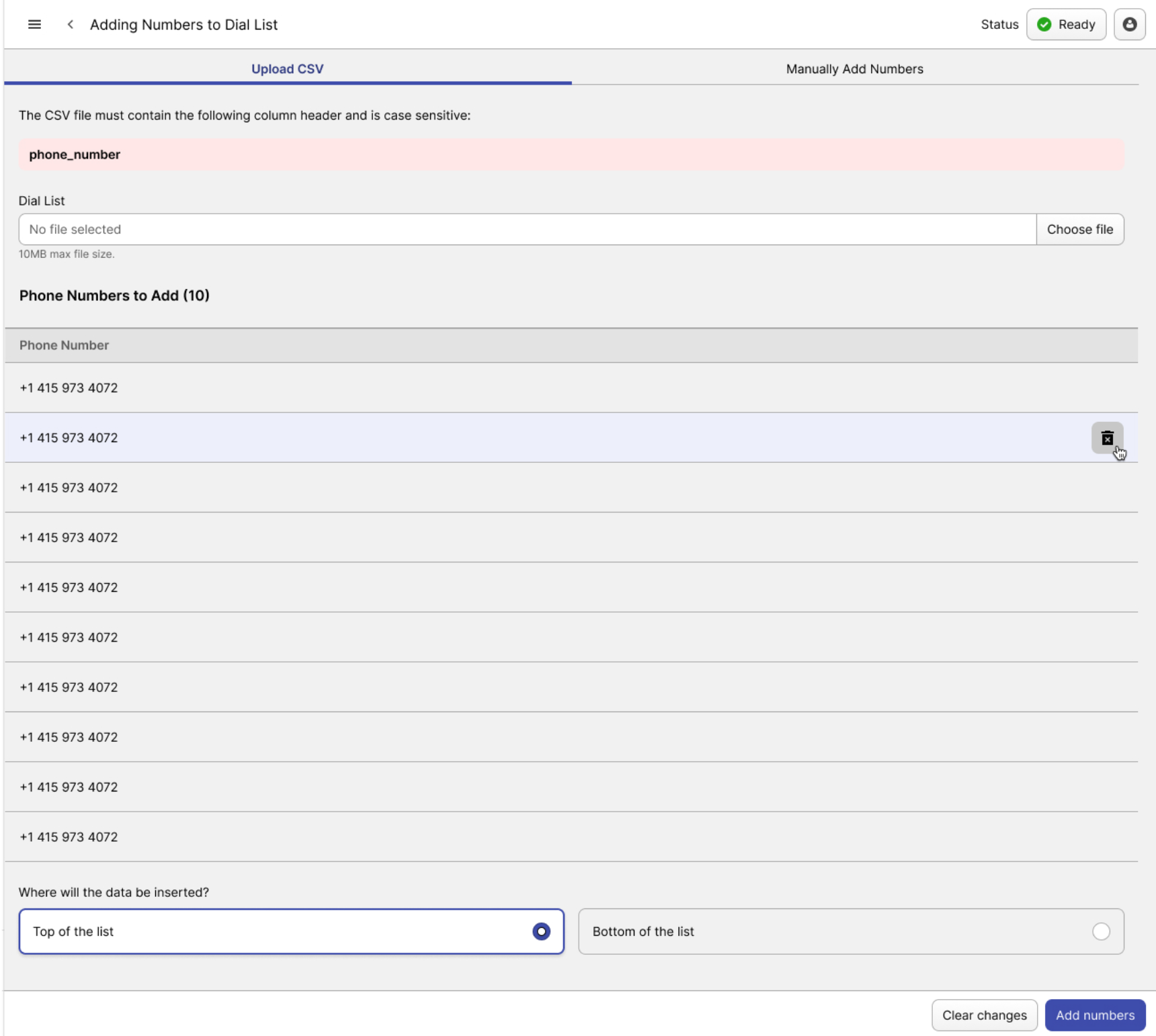
Once the new phone numbers are uploaded, they will be displayed on the page. To delete any number, click the trash bin icon on its row.
-
By manually adding numbers: by choosing the “Manually Add Numbers” tab, you can add phone numbers to the Dial List by entering them manually.
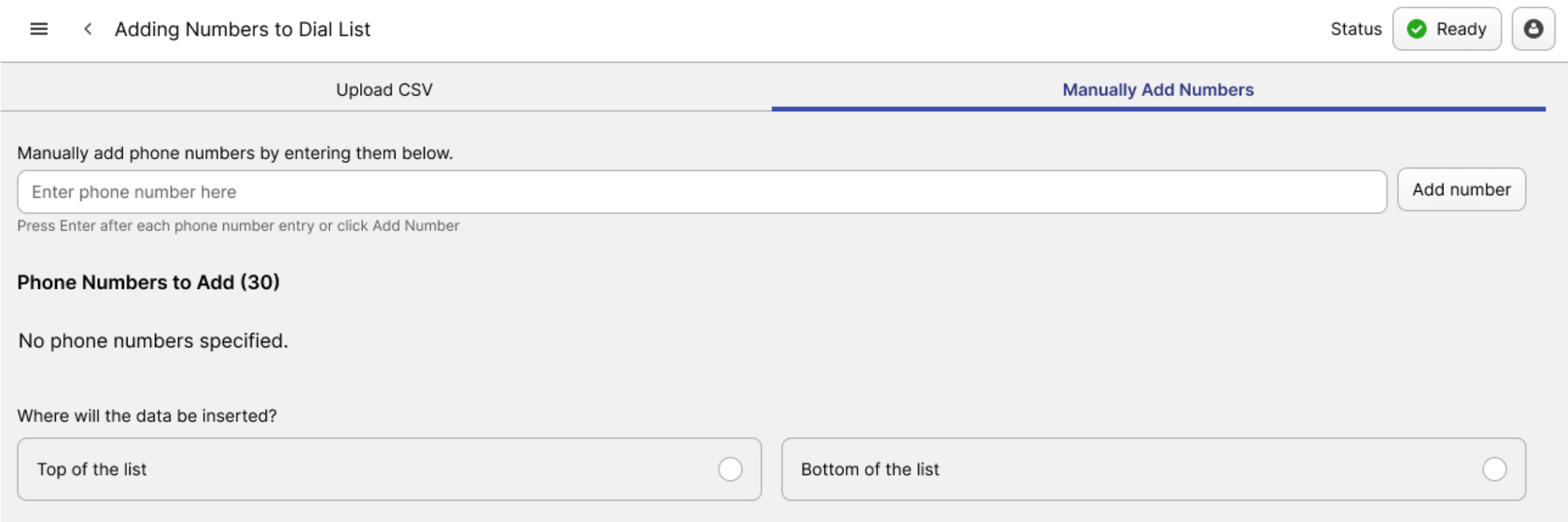
- Manually add phone number by entering them below: use this field to input phone numbers you want to add to the Dial List.
- Where will the data be inserted: choose how the entered phone numbers should be added to the Dial List.
- Top of the list
- Bottom of the list
Once the new phone numbers are uploaded, they will be displayed on the page. To delete any number, click the trash bin icon on its row.
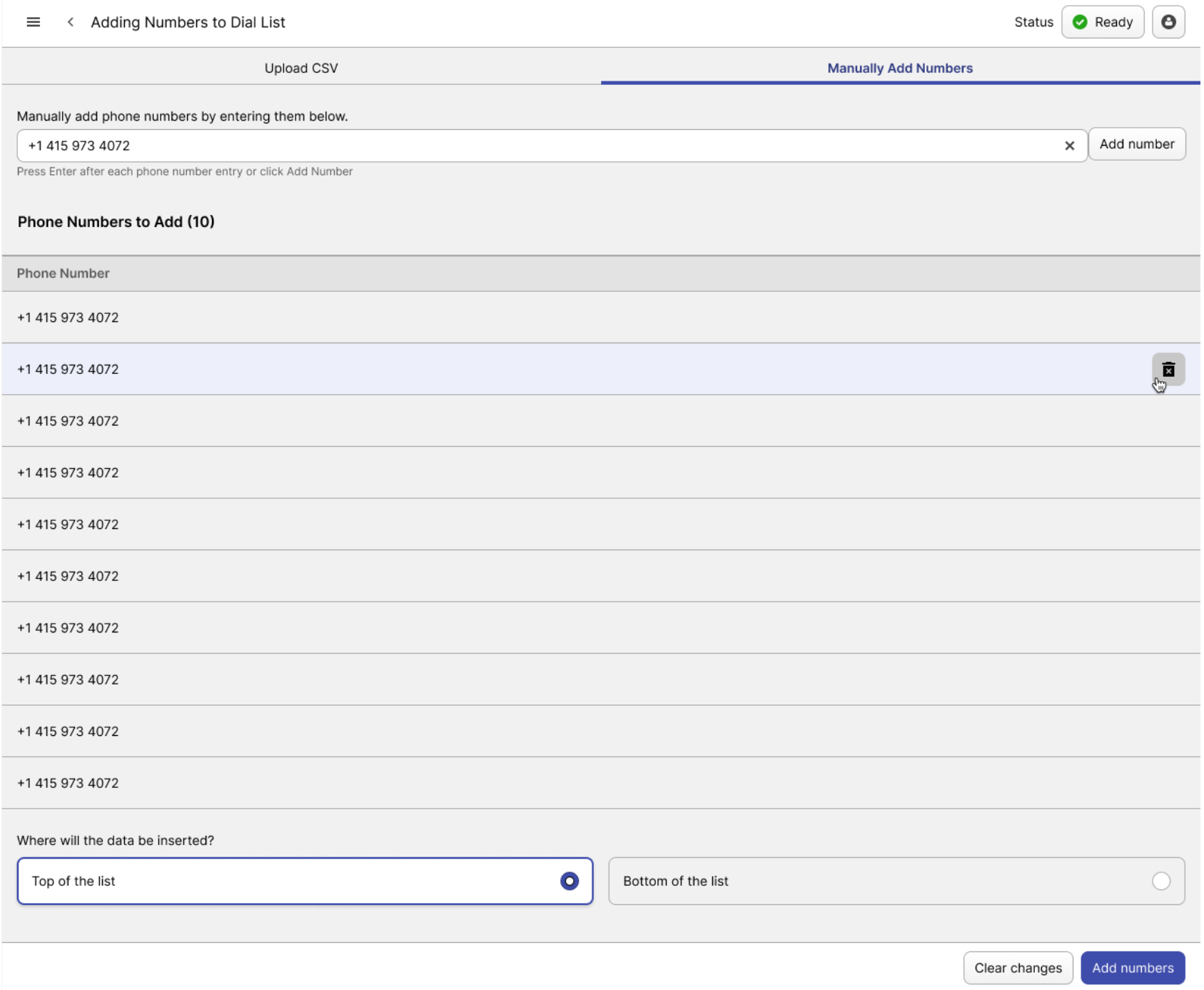
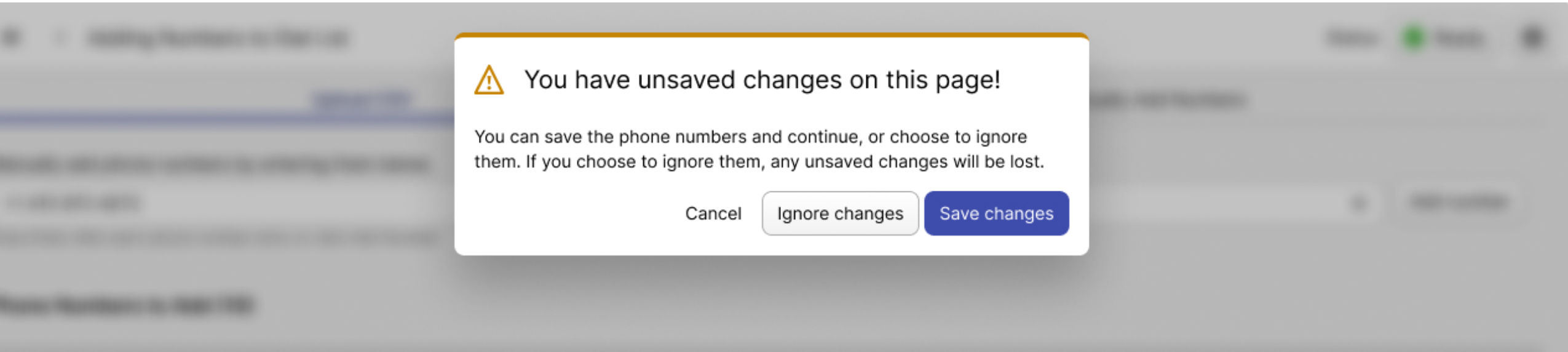
Regardless of the method used to add numbers to the dial list, make sure to press the “Add Numbers” button. If you navigate to another tab or click outside the window, the system will notify you that your changes haven’t been saved and prompt you to either save the changes, discard them, or cancel.