2. Agent Level - Call Center Feature - Queues Tab
After you click the “Begin Session” button, the session will start and the Queues tab will appear in the main space of the app.
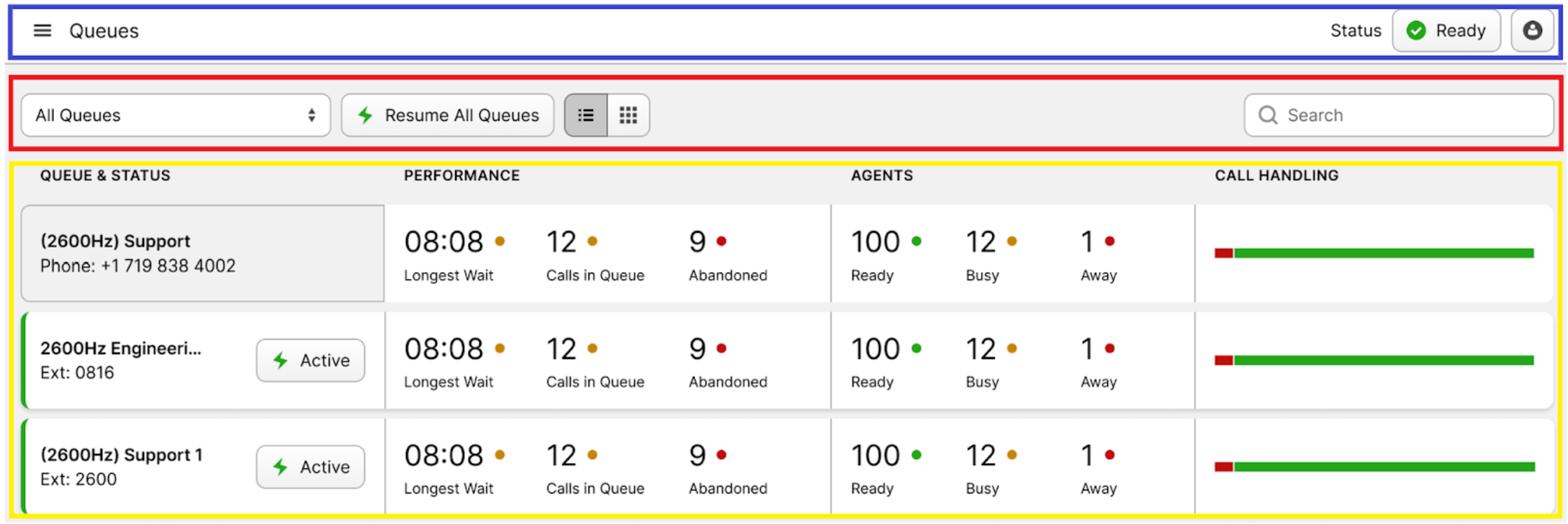
The interface of the Queues tab can be divided into three primary sections:
-
Queues Status Bar (blue rectangle): this bar allows you to control the status of your session.
-
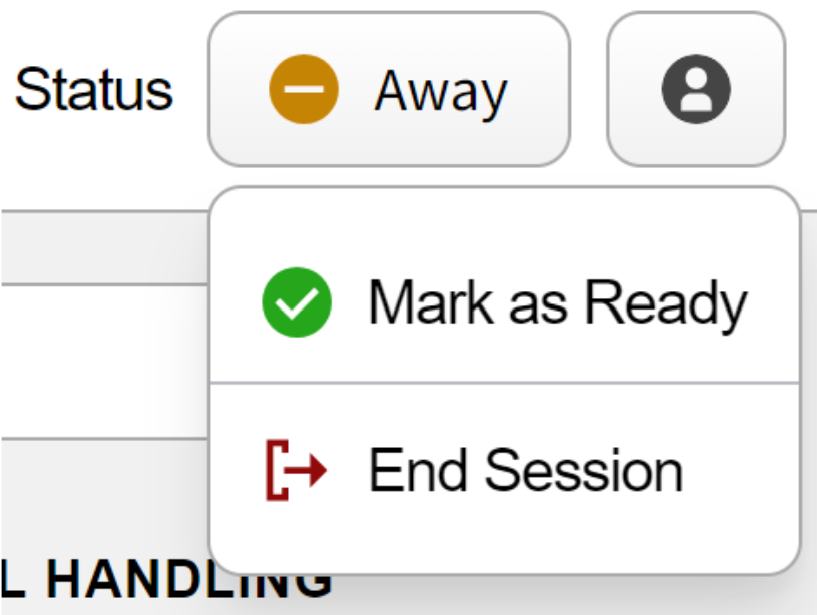
The status button lets you update your account’s status. Clicking it opens a drop-down list with options such as “Ready,” “Away,” or “End Session.”
-
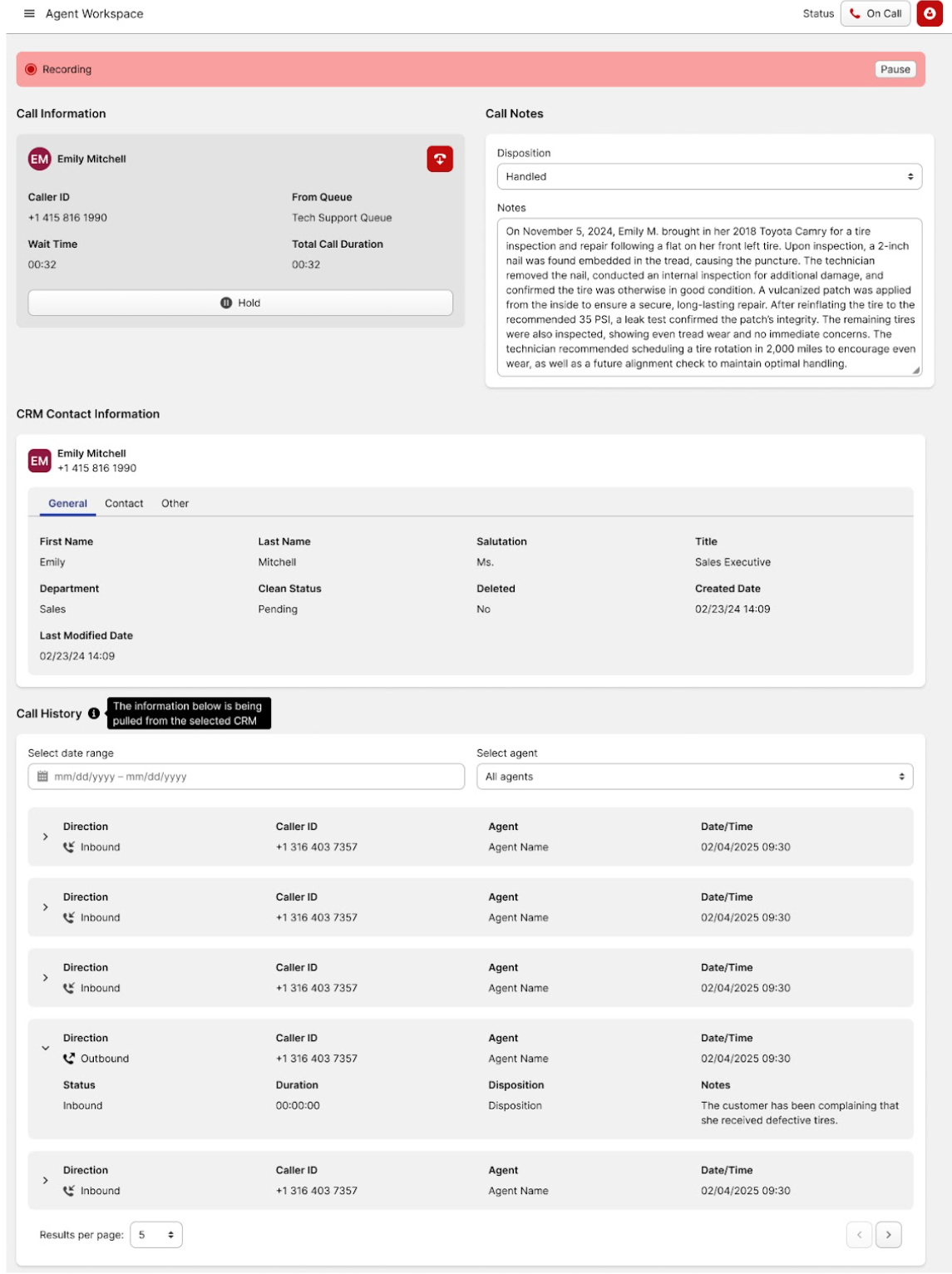
The button with the human icon provides access to the agent workspace, where you can enter call details, notes, and other related information.
-
-
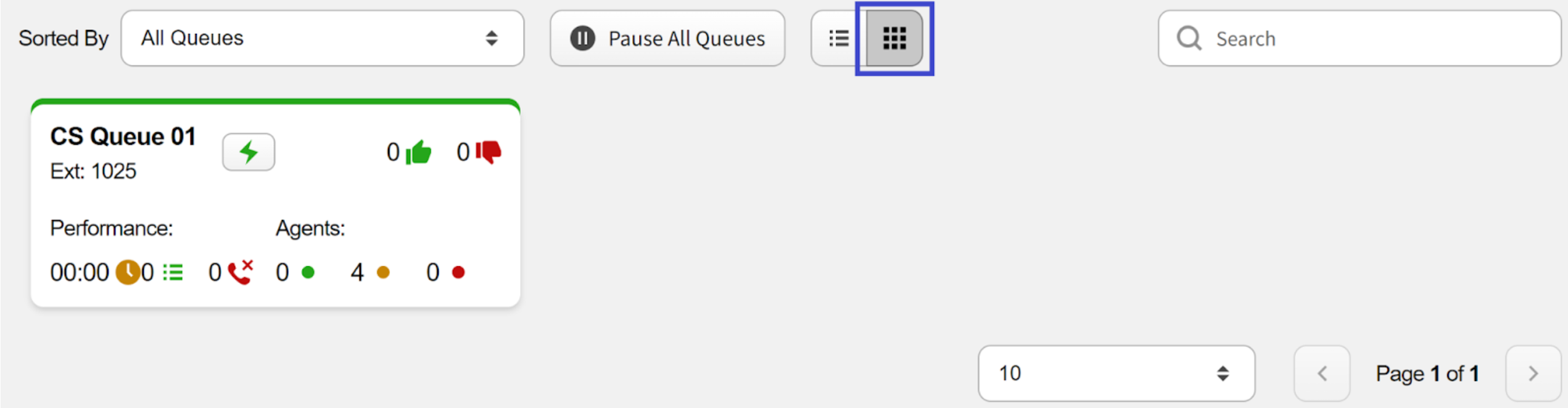
Action Bar (red rectangle): this bar contains all the action controls used to sort queues, switch the view, and pause or resume all queues simultaneously.

-
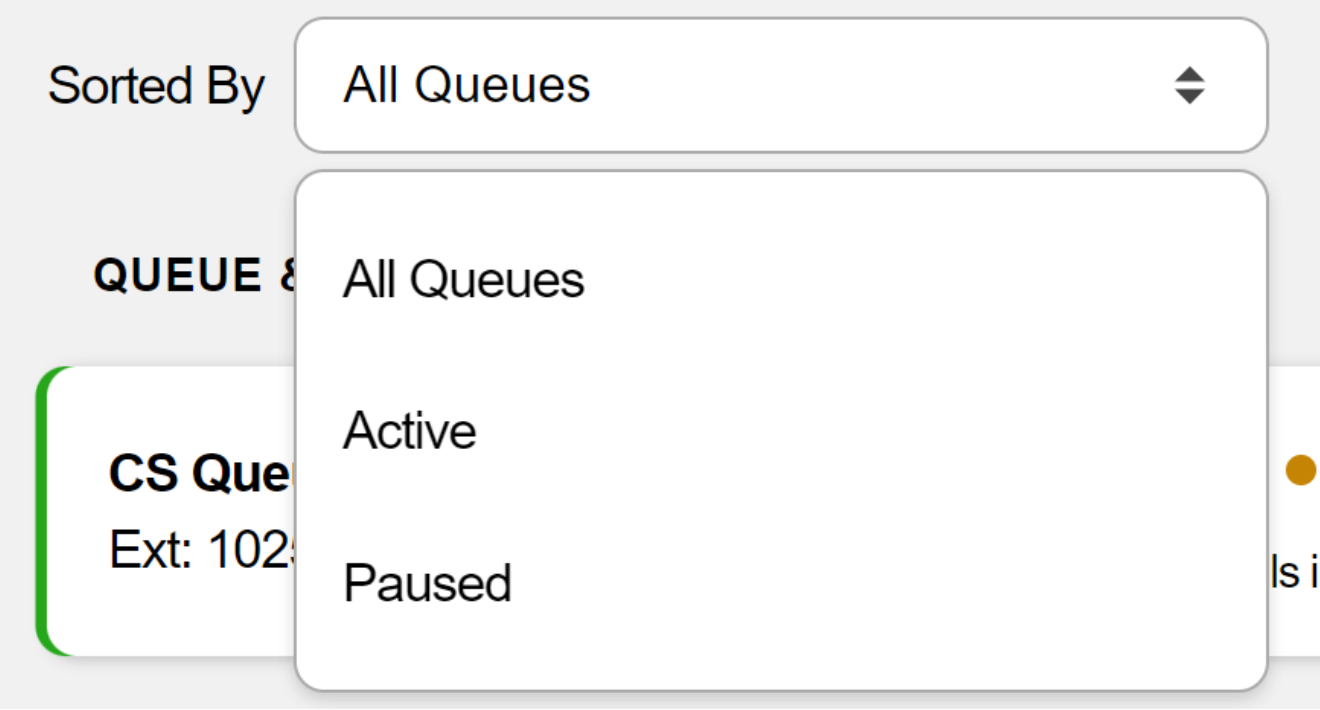
Sorted By: clicking this field allows you to sort the queues in the list by status, choosing between “Active” or “Paused.”
-
Pause/Resume All Queues: when you click the “Pause All Queues” button, every queue in the list will be paused. The button will then switch to “Resume All Queues,” which you can click to reactivate all queues.

-
List / Grid View: clicking the “List View” button displays all queues in this tab in a list format.

Selecting the “Grid View” button shows the same queues as a grid of tiles.
-
Search Bar: it functions as a typical search field, helping you locate a particular queue or narrow down the list.
-
-
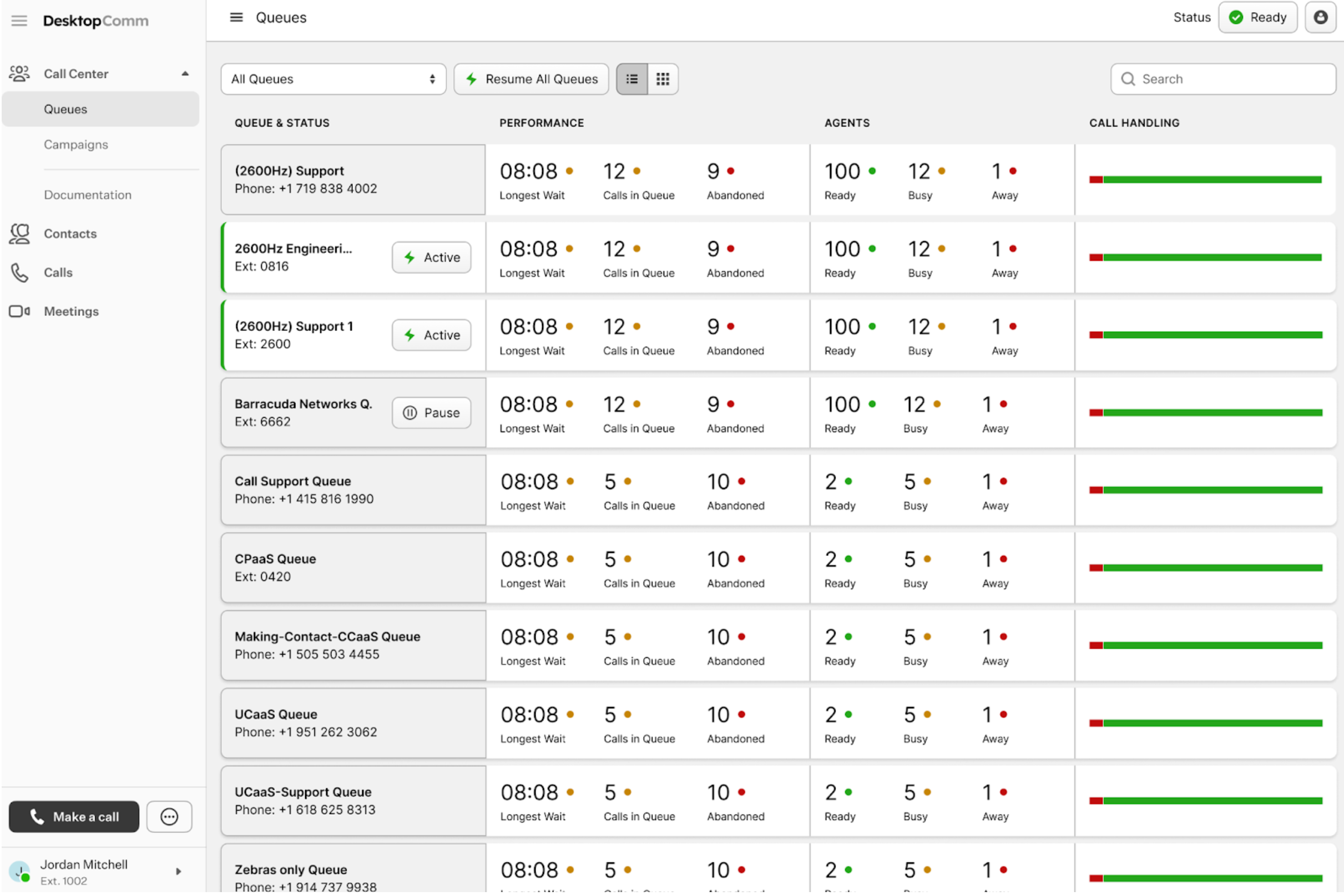
Queues (yellow rectangle): each queue in the section is displayed as a tile. Depending on the selected View, it will appear either as a long horizontal tile or a smaller rectangular one. Each tile contains useful information such as the queue name, its status, performance metrics, assigned agents, and key call-handling details.

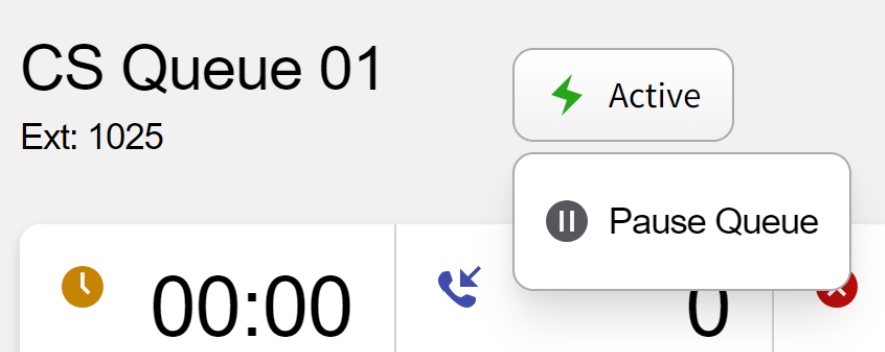
If a tile displays a status button, it indicates that the queue currently has an active session. Clicking this button allows you to change the session’s status from “active” to “paused.” Clicking any queue in the list opens its dedicated page, where you’ll find the same information in greater detail, along with action buttons and tabs for calls, members, and activity logs.
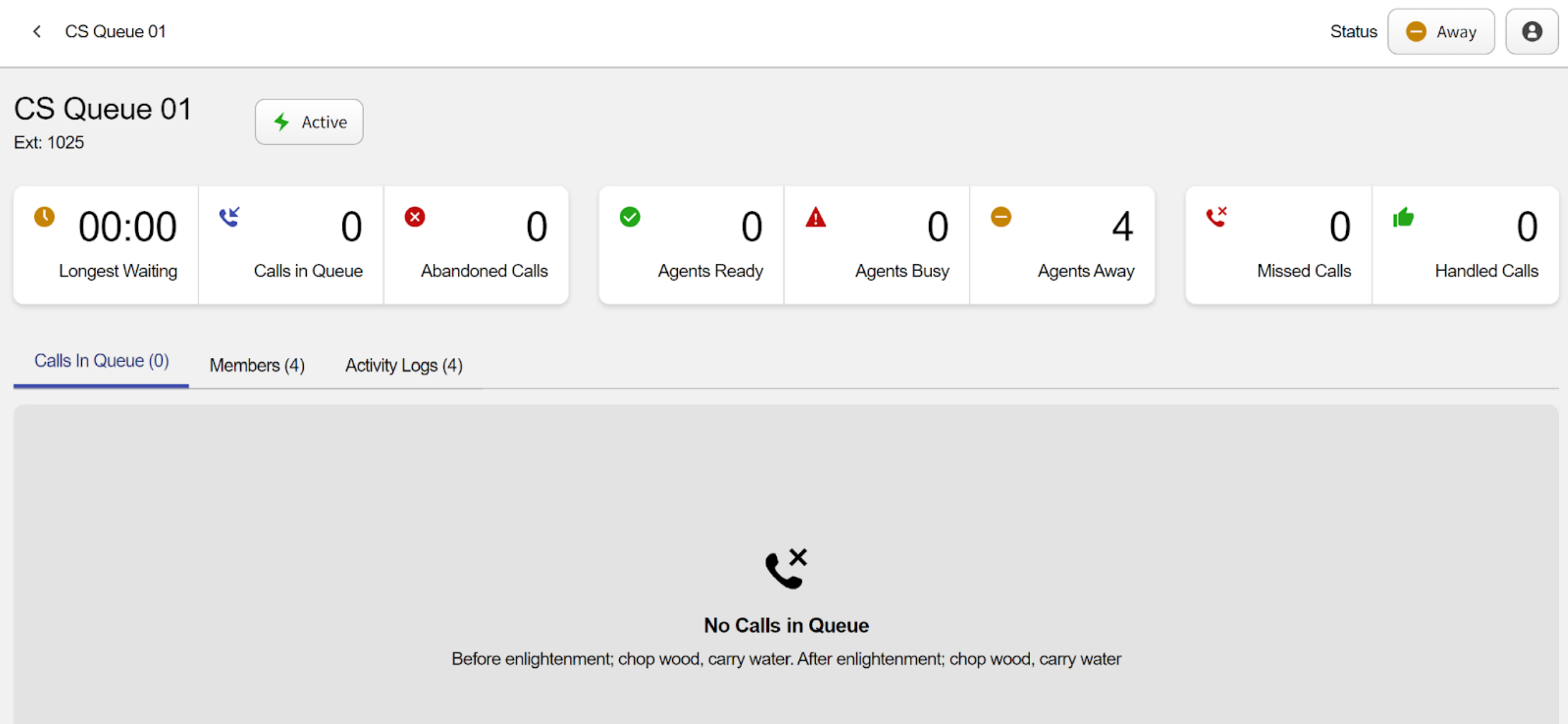
The action buttons include:
-
Activity button: clicking this button allows you to enable or pause the selected queue.
The lower half of the selected queue’s personal page contains three tabs:
-
Calls in Queue tab: this tab displays all calls currently waiting in the queue.
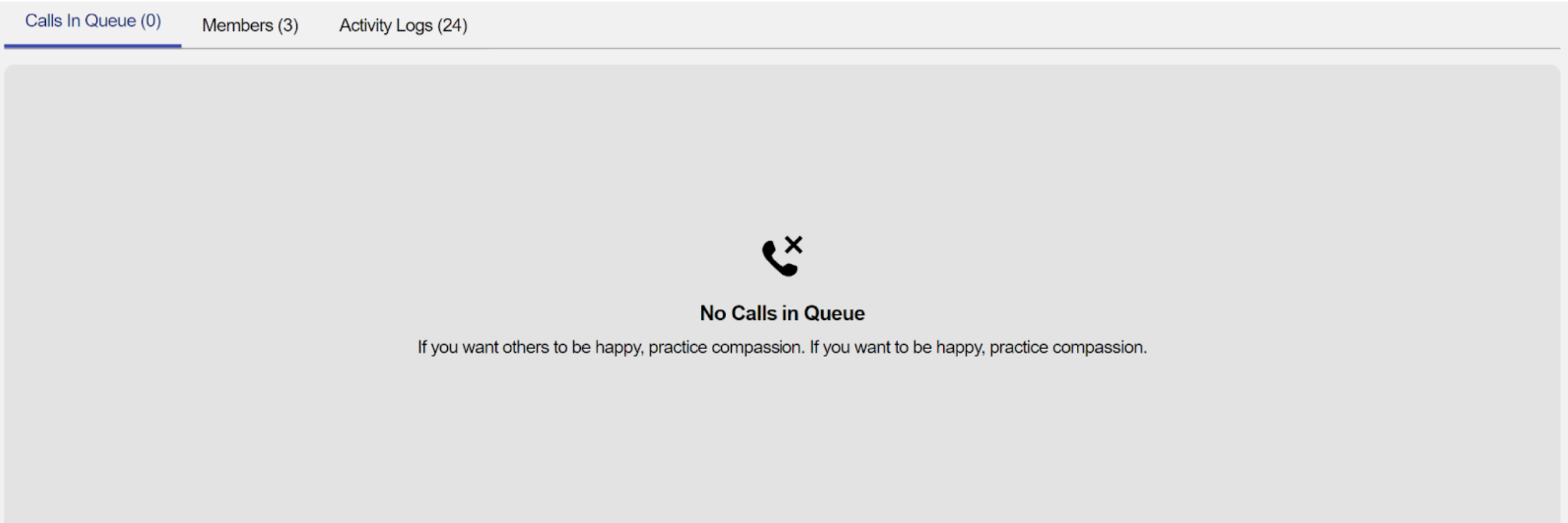
If this tab is empty, it means there are no calls in the selected queue.
-
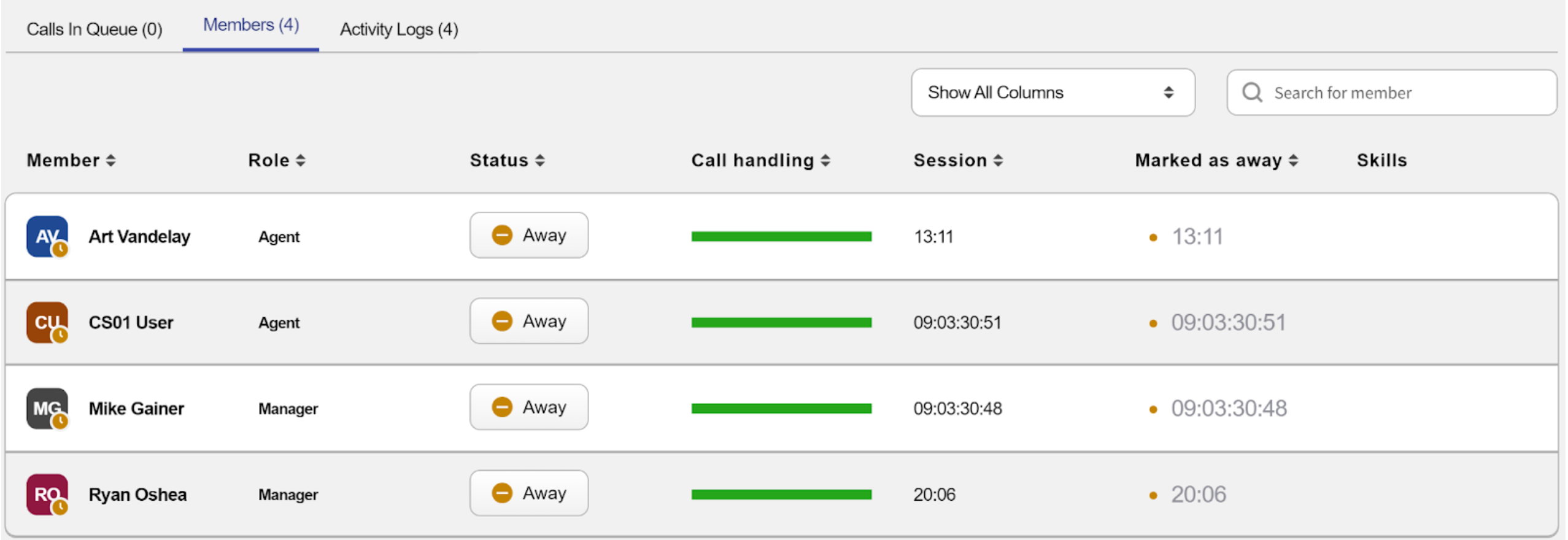
Members tab: this tab displays all agents assigned to this queue. You can view their names, roles, status, and key statistics, including call handling data, current session duration, time spent in “away” status, and a list of their skills.
-
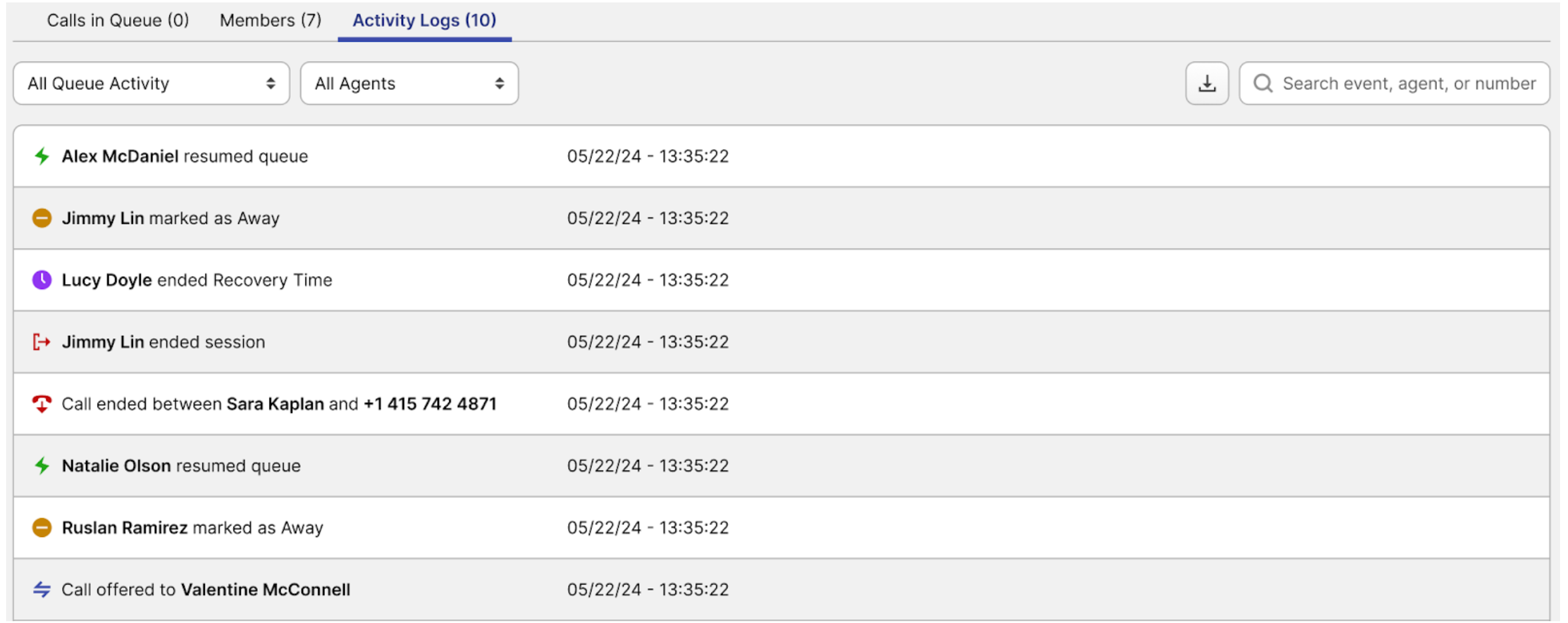
Activity Logs tab: this tab contains all logs related to the current queue. You can filter logs by activity status or agent name, search by event, agent, or phone number, and download the entire log history.
-