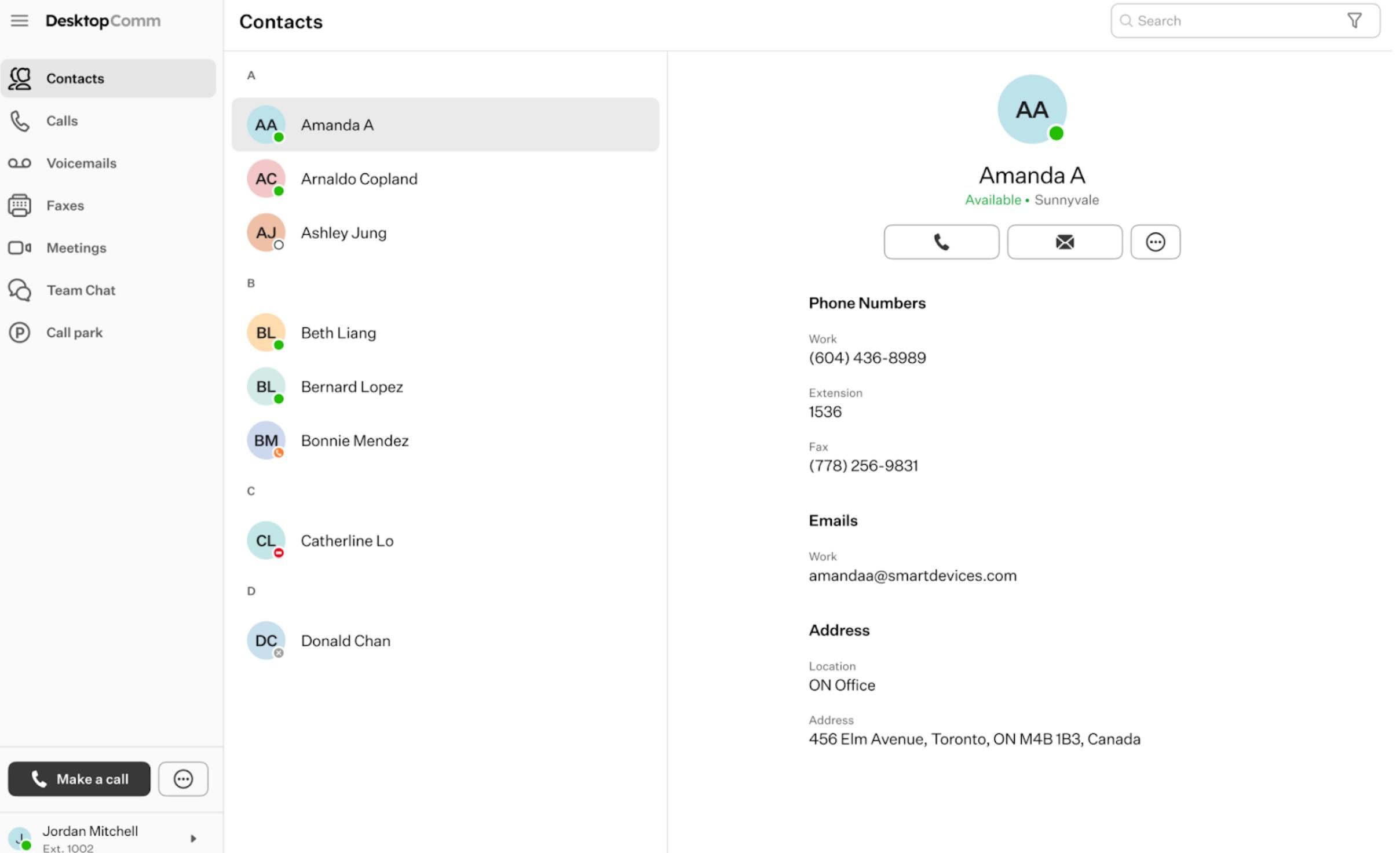
DesktopComm App - Login Page Overview
Logging In
When the user launches the DesktopComm App for the first time, they will be presented with this interface.
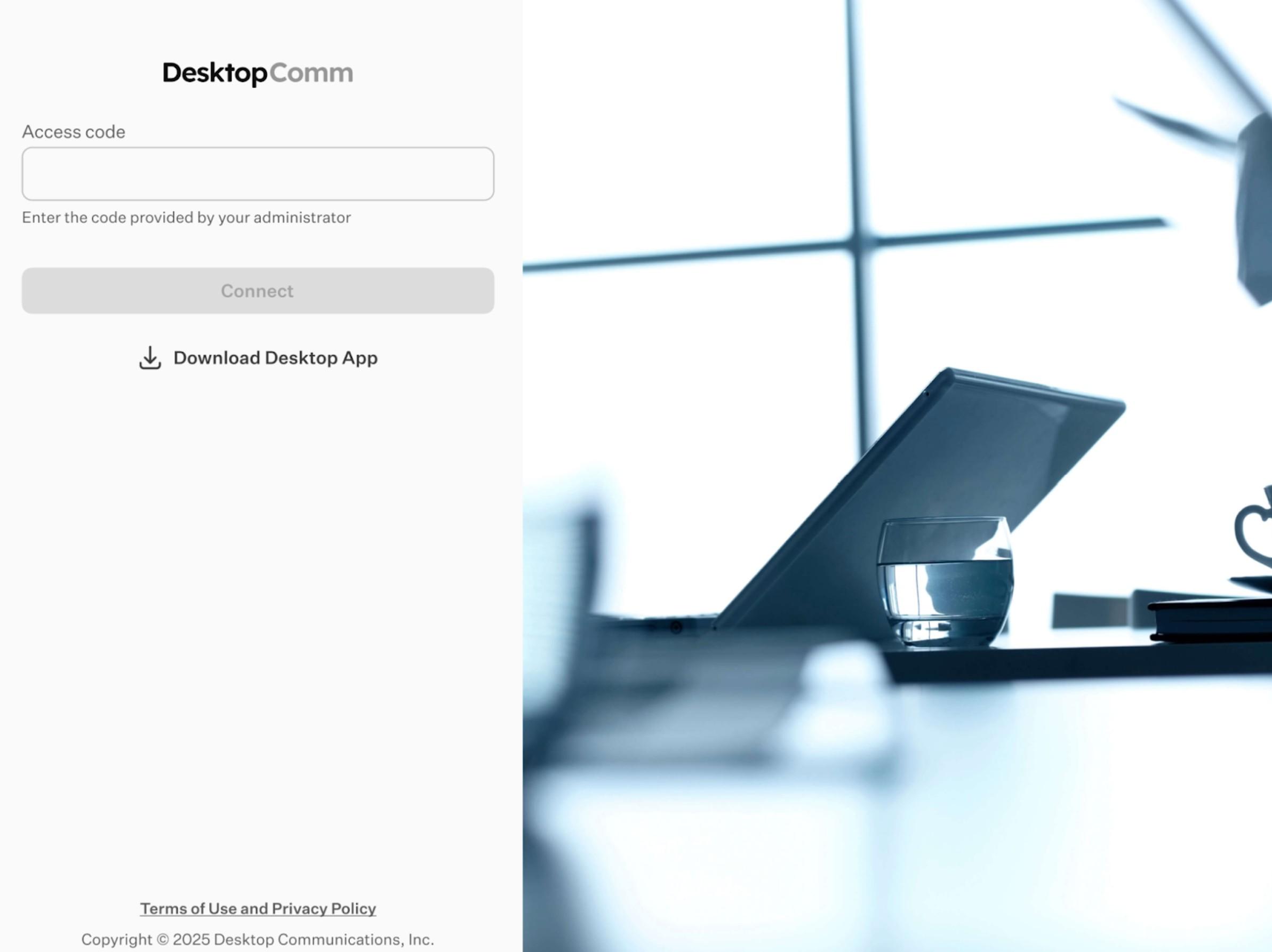
The Access Code identifies a specific instance of your system. Please contact your Administrator to obtain the appropriate Access Code.
Access Code example:
- Shared Hosted platform: Welcome
Once you enter the Access Code, the General Login Form will become accessible.
General Login Form
At the top of the DesktopComm App window, you will find the primary General Login Form. This form operates like a standard login interface where you input your credentials.
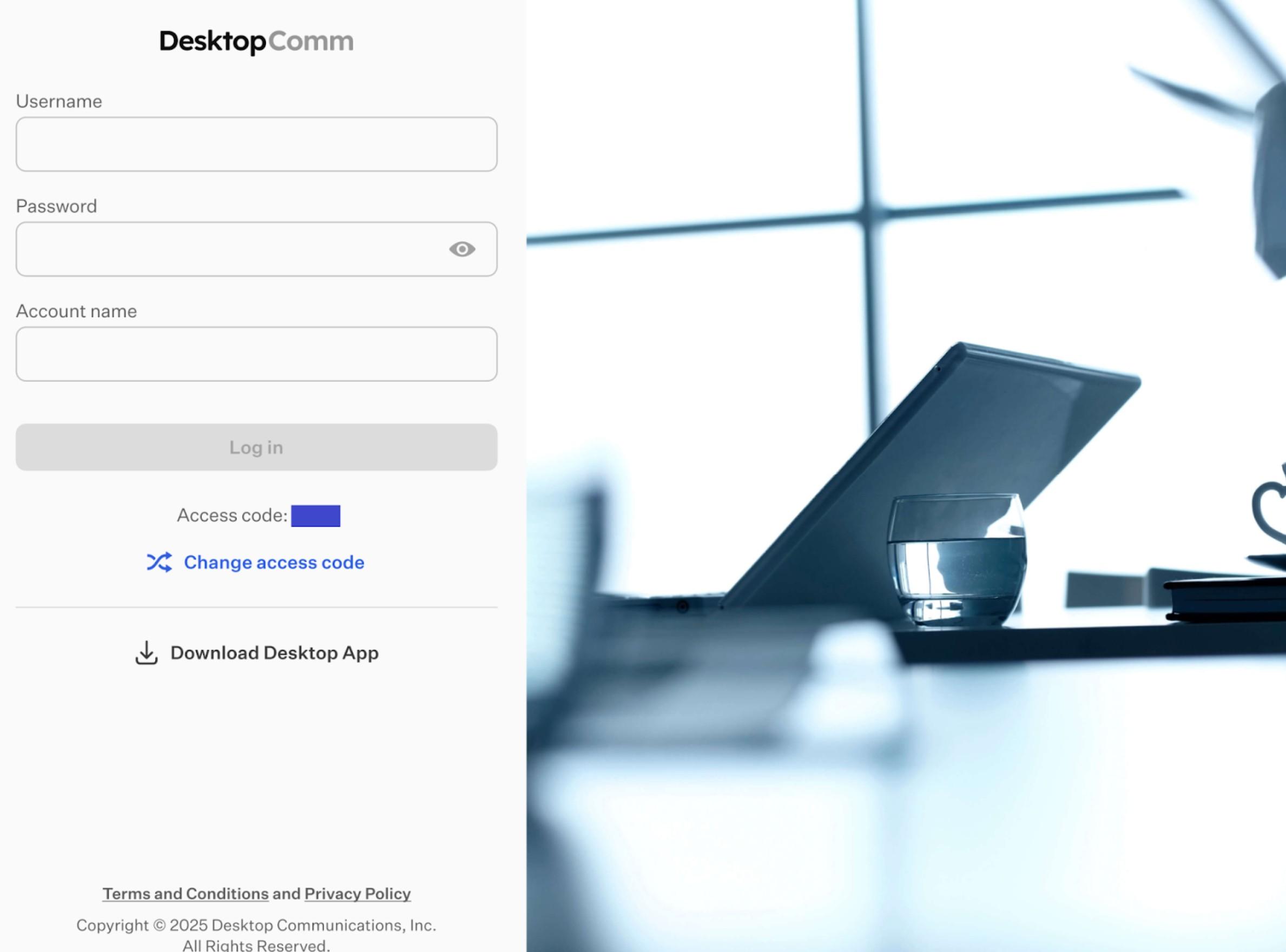
Once filled, the “Log In” button becomes active for submission.

If an account administrator has enabled MFA (or messaging features that require MFA), an additional pop-up window will appear after you click the “Log In” button.
Multi-Factor Authentication (MFA) is a security approach that requires users to confirm their identity using two or more distinct verification factors before access is allowed. These factors generally include something the user knows (for example, a password or PIN), something the user possesses (such as a mobile device or hardware token), and something the user is (such as biometric information). By requiring multiple forms of verification, MFA significantly reduces the risk of unauthorized access, even if one factor is compromised.
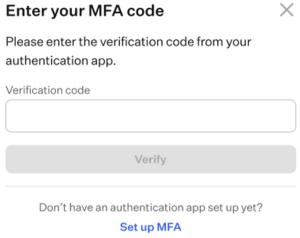
Once you receive the verification code from your authentication app, enter it in the corresponding field and click the “Verify” button to access the app.
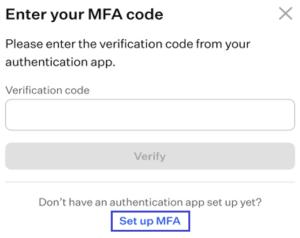
If you don’t have MFA enabled for your account, click the “Set Up MFA” button in the pop-up window and follow the wizard to complete the setup using one of the suggested options. The three options shown are recommendations, not requirements.
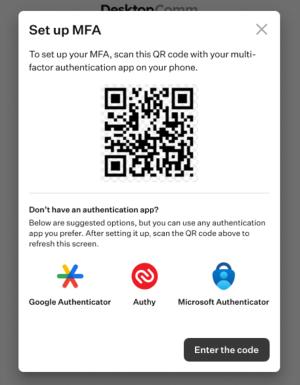
After completing the MFA authentication process, you will gain access to the app.