
8. Manager Level - Call Center Feature - Call History tab
After you click the “Begin Session” button, the session will start and the Queues tab will appear in the main space of the app.
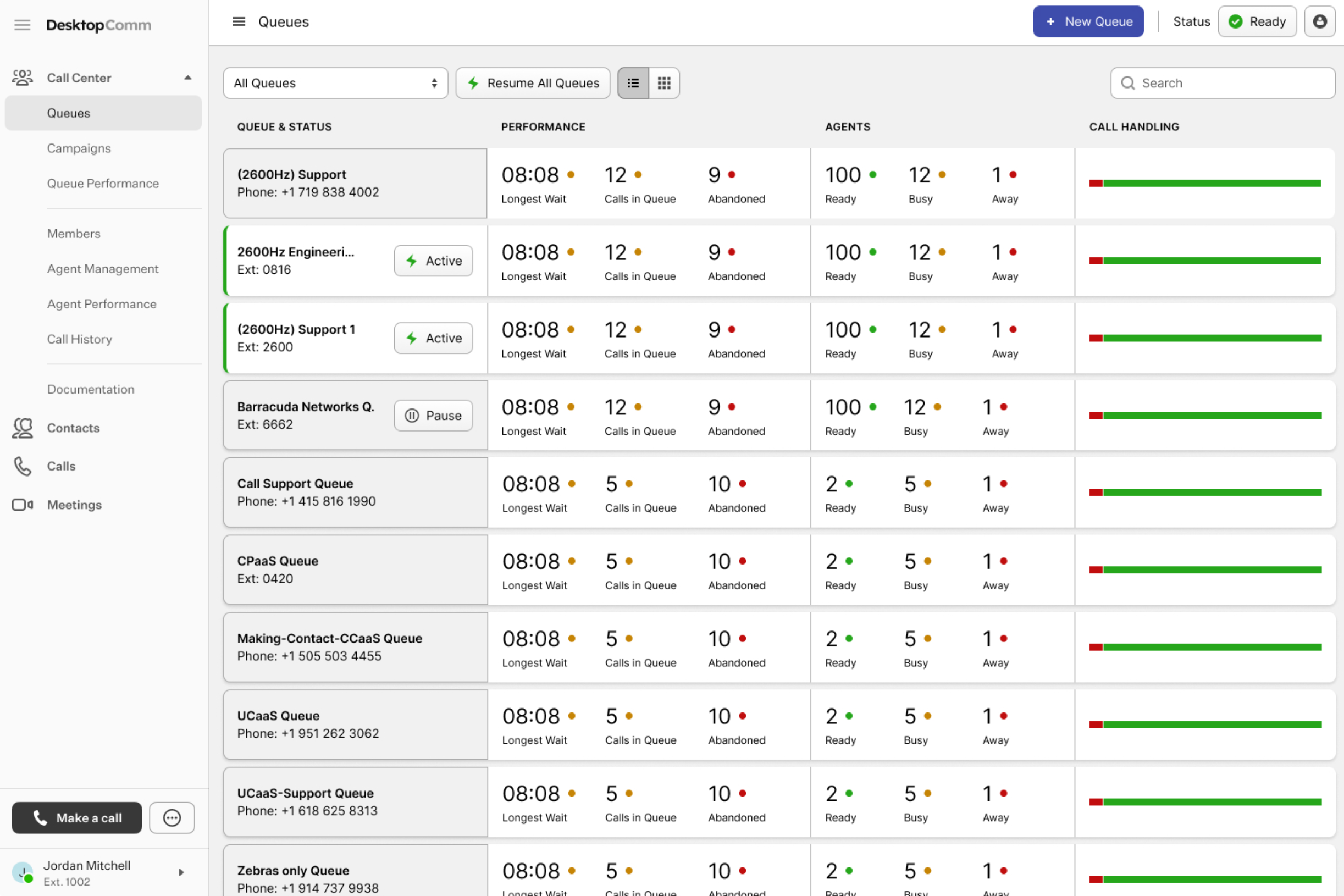
Click the Call History tab in the left-hand menu of the portal to open the corresponding section of the Call Center.
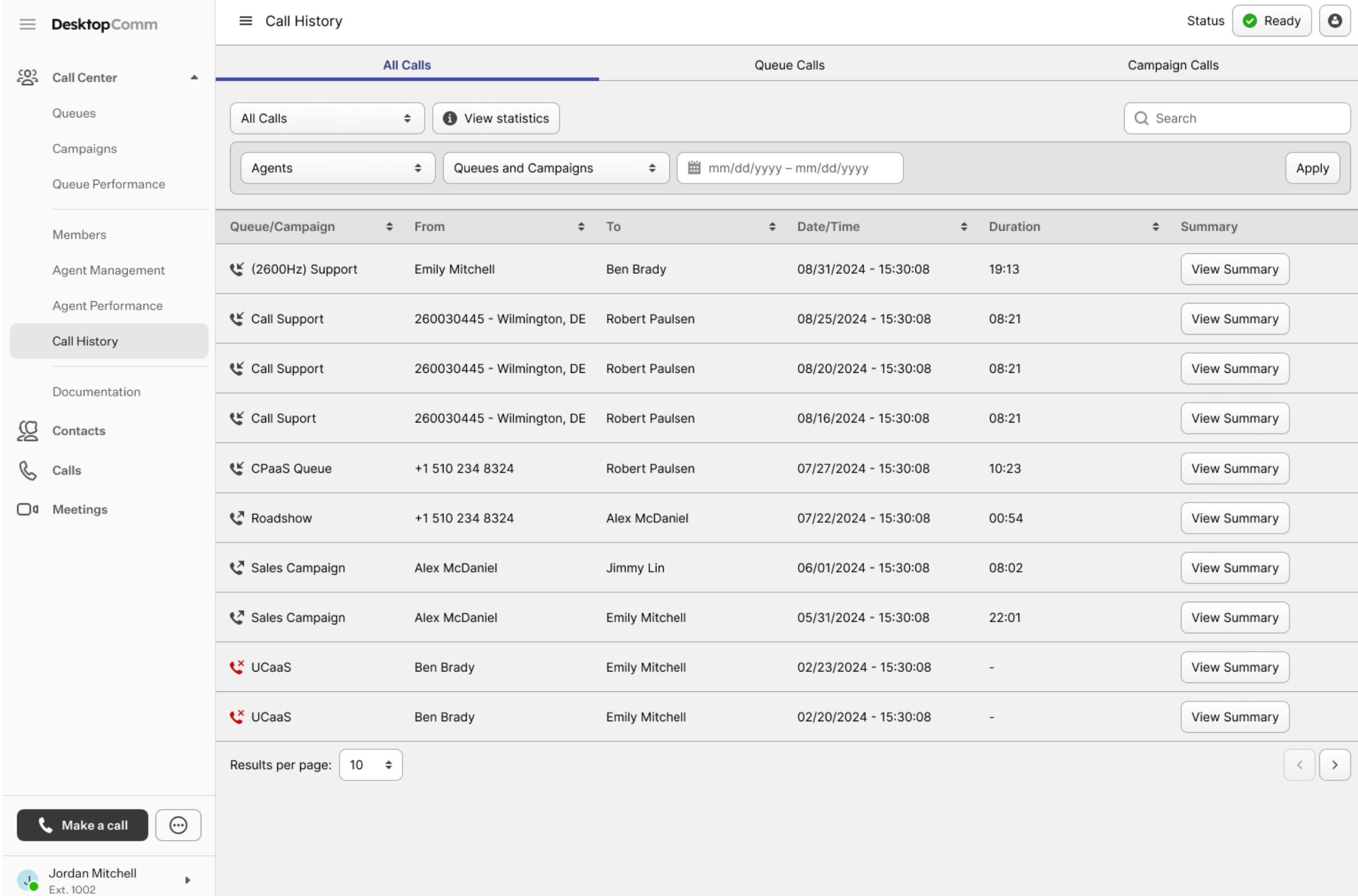
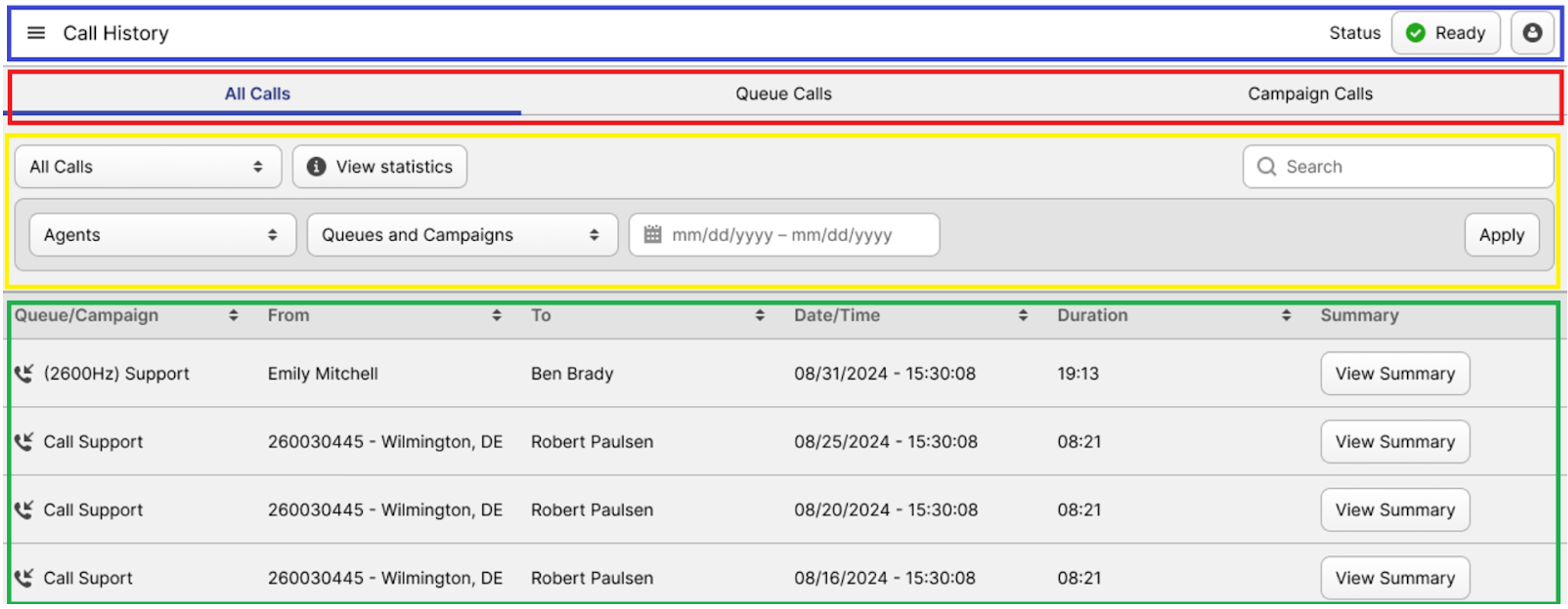
The interface of the Call History tab can be divided into four primary sections:
-
Call History Status Bar (blue rectangle): this bar allows you to control the status of the your session.
-
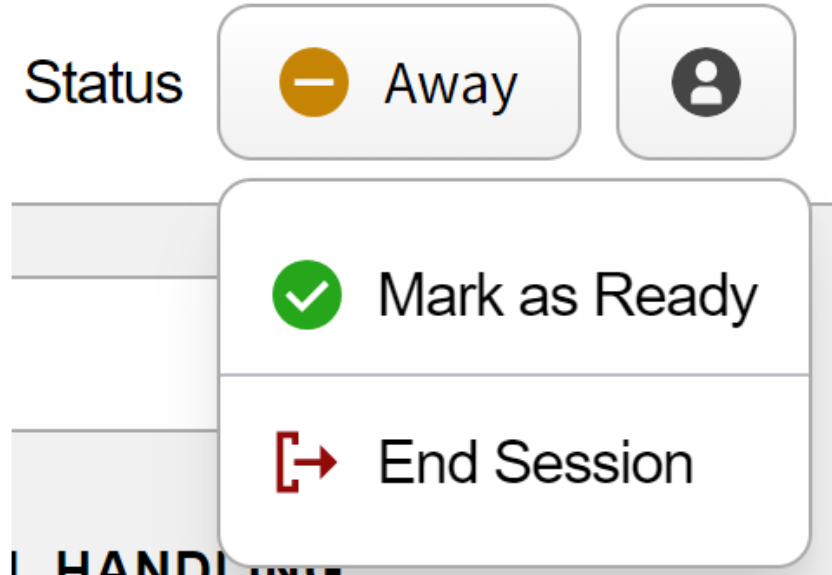
The status button lets you update your account’s status. Clicking it opens a drop-down list with options such as “Ready,” “Away,” or “End Session.”
-
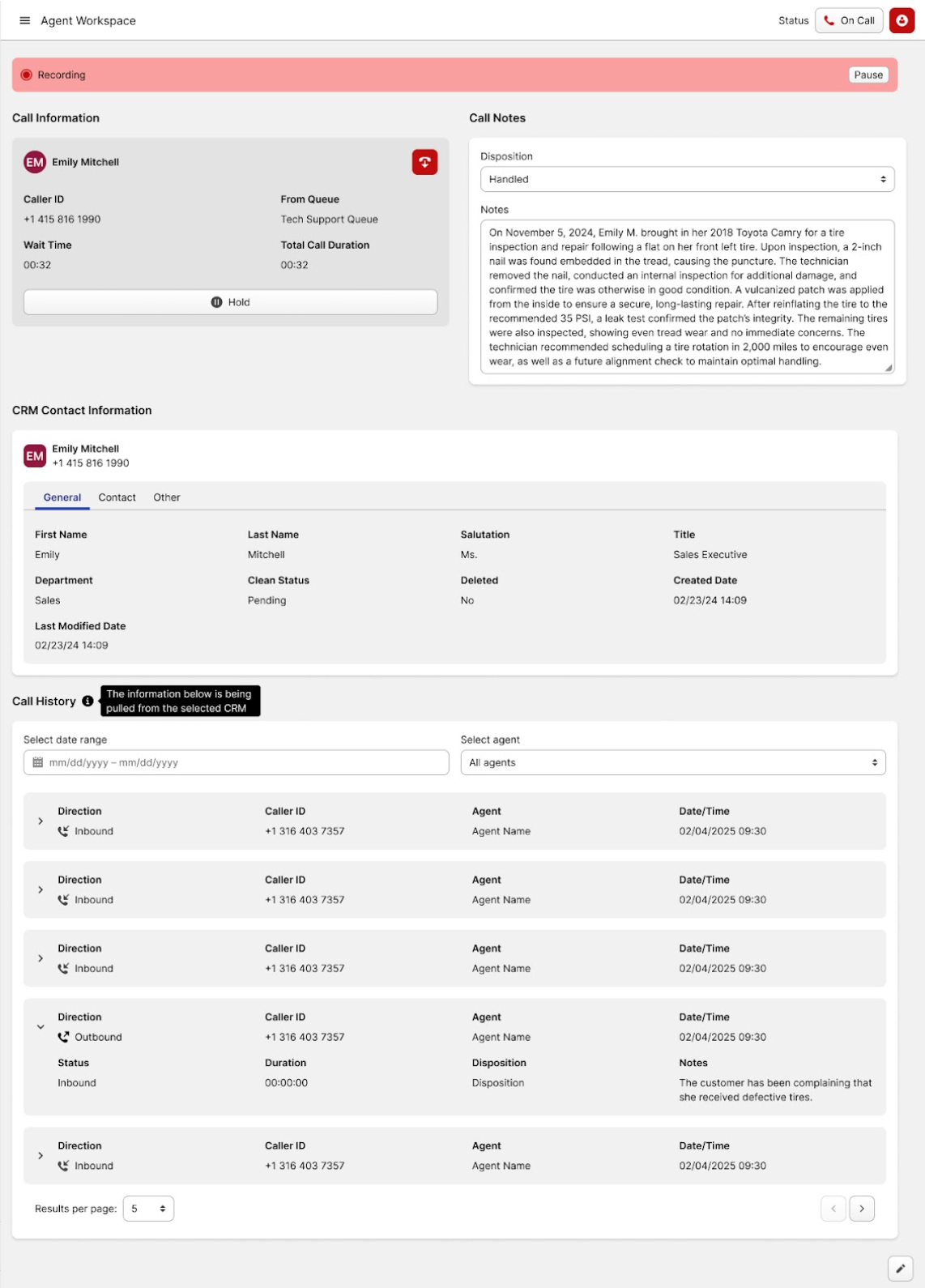
The button with the human icon provides access to the agent workspace, where you can enter call details, notes, and other related information.
-
-
Tab Bar (red rectangle): it includes three tabs, and selecting any of them updates the content displayed in the Call History table (green rectangle).
-
Action Bar (Yellow rectangle): this bar is the same for all the tabs and it contains all the action controls used to sort the data in the Call History table (green rectangle).

-
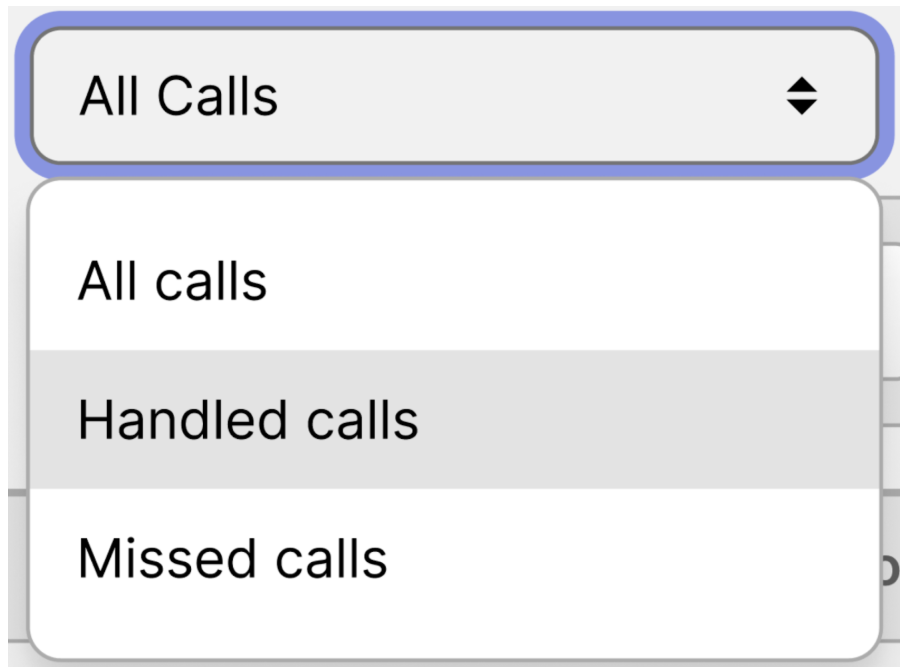
All Calls: here, you can select the type of calls.
-
View Statistics: by clicking this button, you’ll be taken to the statistics page, where the information from the call history table is presented as bar charts.
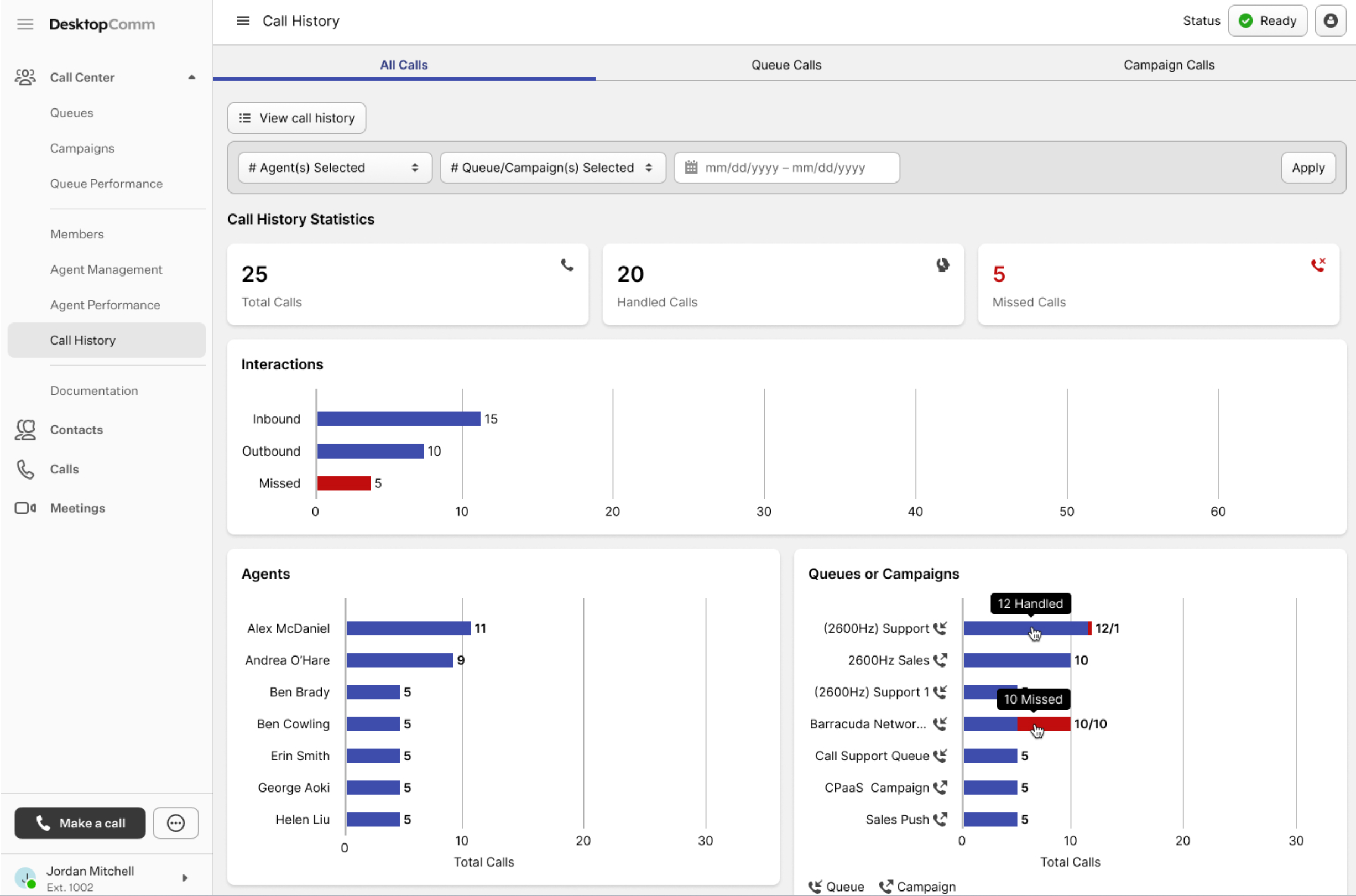
The interface of this page contains these elements:
- View Call History: by pressing this button, you will return to the Call History page.
- Filter: this section acts as a filtering tool, allowing you to filter the given statistics by any parameter it contains.
- Dashboard: here, you can find a bunch of bar charts to have a visual interpretation of the call history data from the previous page.
-
Search Bar: it functions as a typical search field, helping you locate a particular agent.
-
Filter: this section acts as a filtering tool, allowing you to filter the Call History table by any parameter it contains.
-
-
Call History table (green rectangle): this table displays all call history data, and its contents change depending on the selected tab.
-
All Calls tab: this tab contains the complete call history data, covering both queues and campaigns.
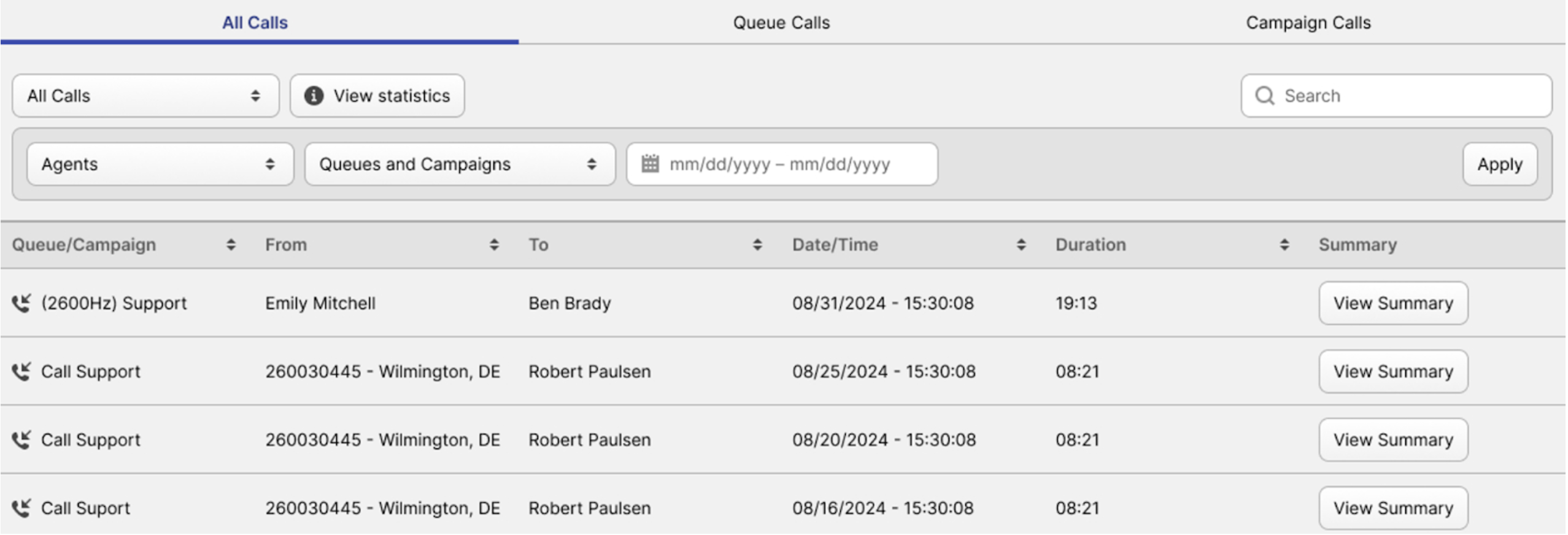
Each queue or campaign listed includes a “View Summary” button, which opens a Summary page containing detailed statistical information.
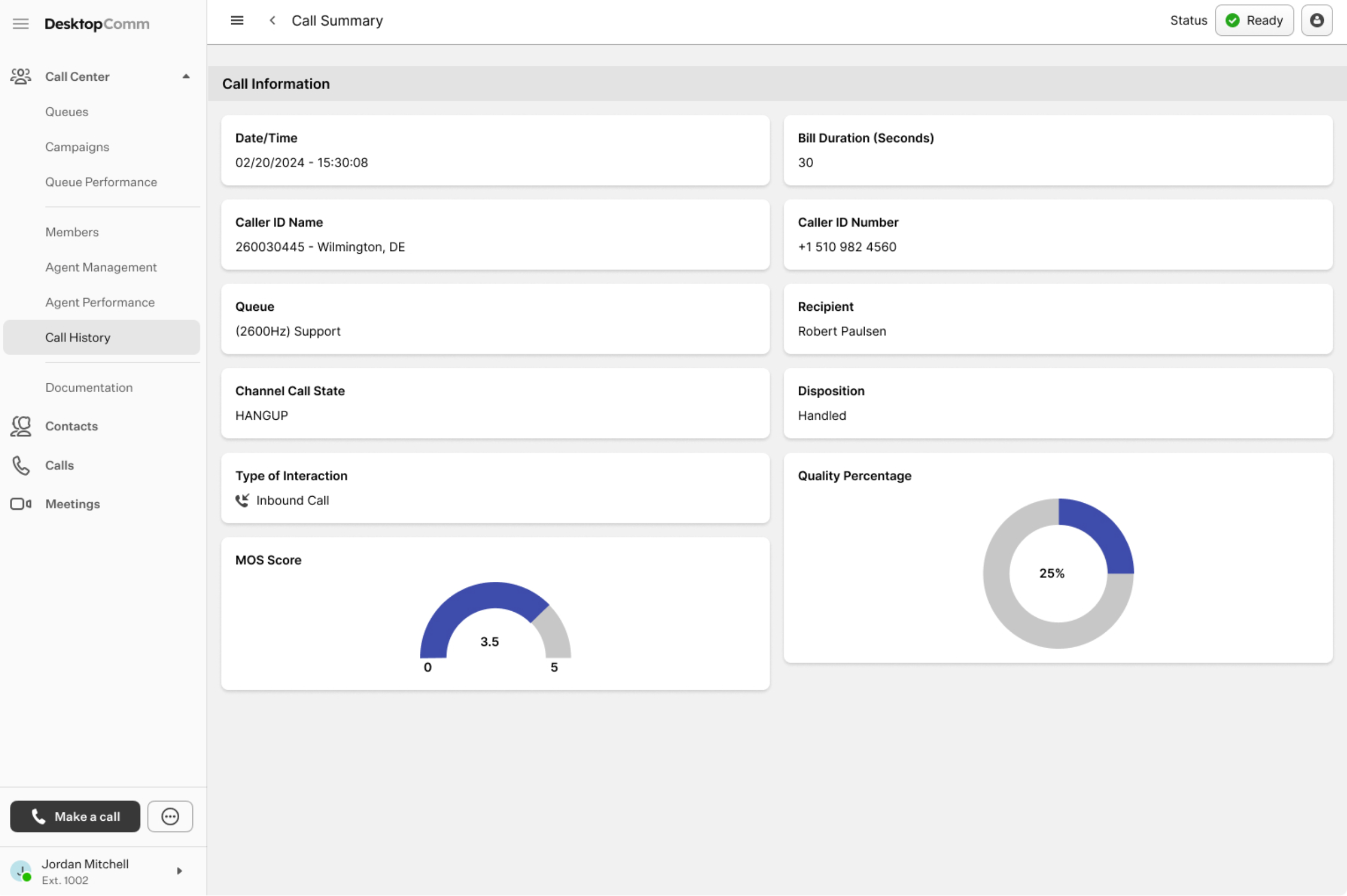
-
Queue Calls tab: this tab contains the complete call history data, covering only the queues.
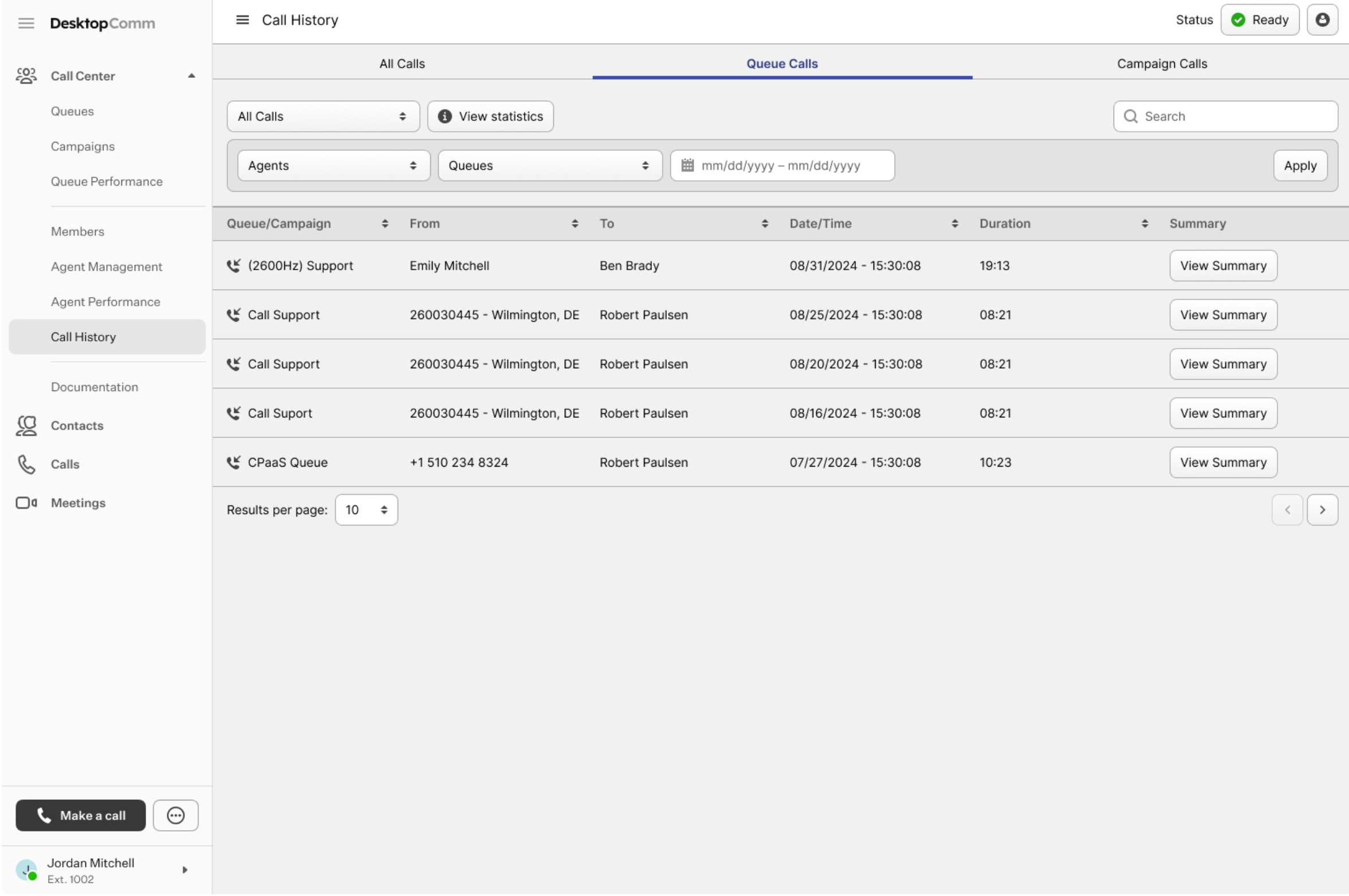
By pressing the “View Summary” button, you open a Summary page containing detailed statistical information about the selected queue.
-
Campaign Calls tab: this tab contains the complete call history data, covering only the campaigns.
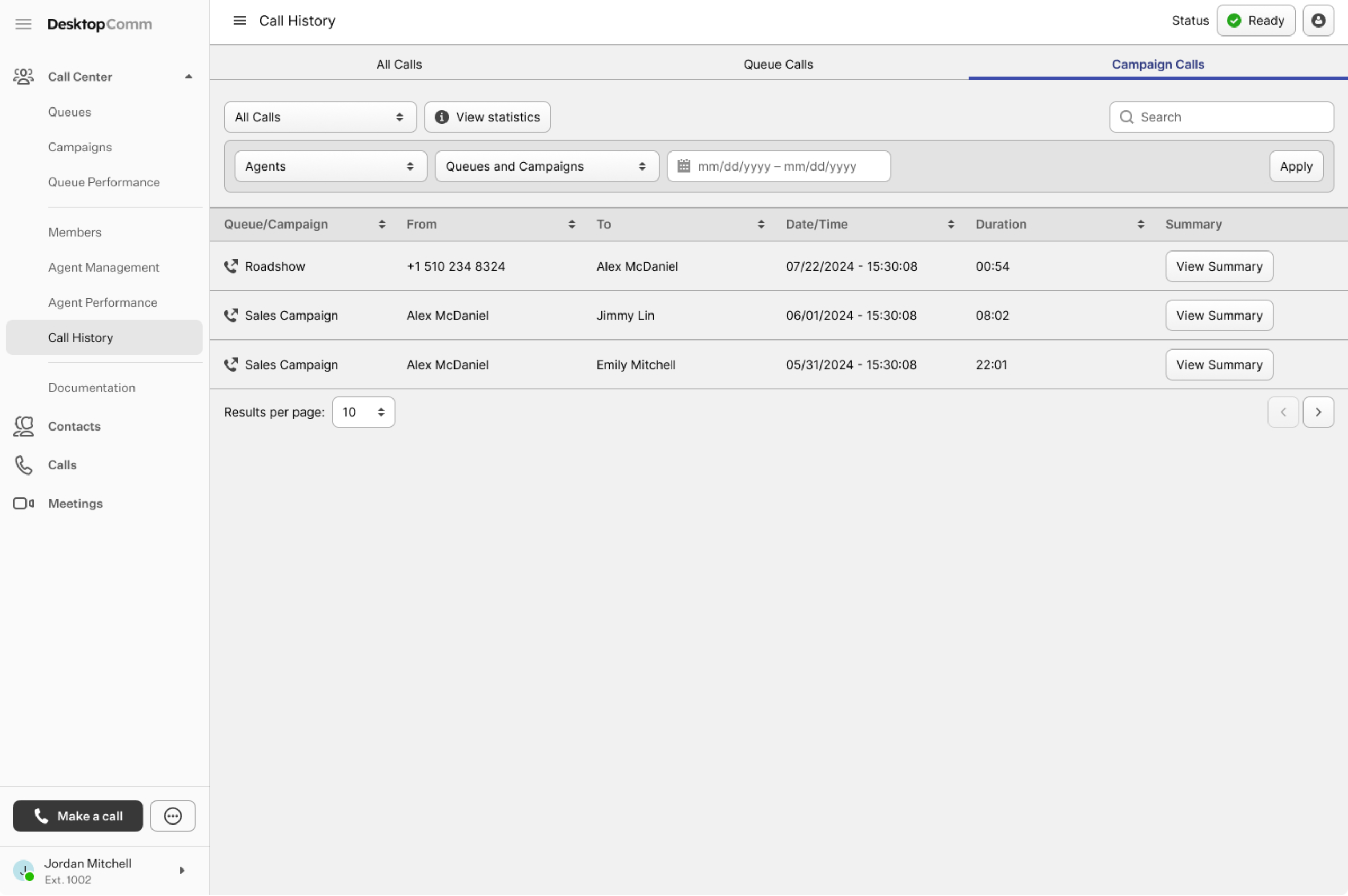
By pressing the “View Summary” button, you open a Summary page containing detailed statistical information about the selected campaign.
-